
How to activate your license key
Your license key unlocks the builder, analytics, automatic plugin updates and product support. Paste it in once and you're set.
In short
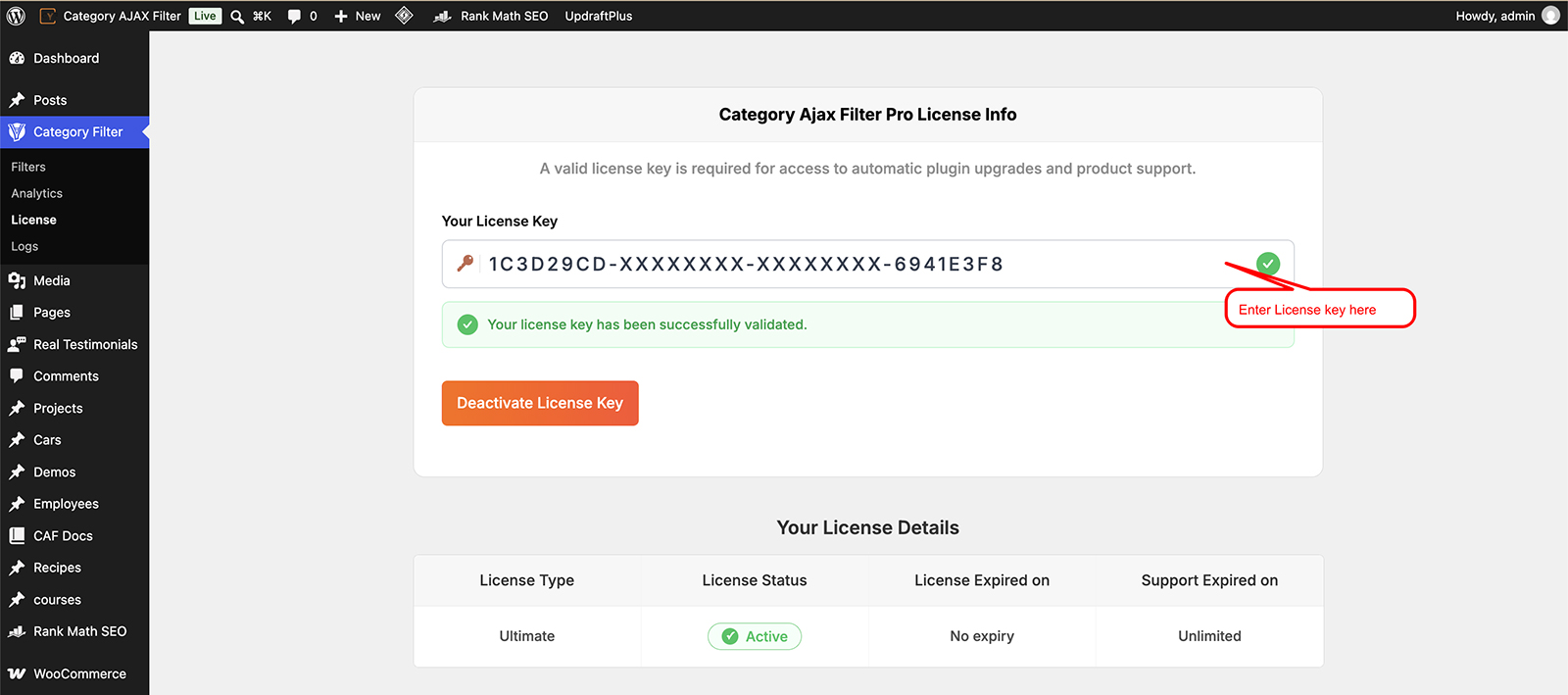
Go to Category Filter → License, enter your license key and email address, then click Activate. Once active, your license details appear below.
Activating your license key
-
Go to Category Filter → License
In your WordPress dashboard, click Category Filter in the left-hand menu, then License.
-
Enter your license key and activate
Paste your license key into the license key field, enter your email address, then click Activate. You'll find the key in My Account → License Manager at trustyplugins.com, or on your order confirmation page. Once activated, you'll see a confirmation message and a Deactivate License Key button.
Your license details
Once activated, the License screen also shows your License Type, License Status, License Expired on, and Support Expired on - so you can check your plan's status at a glance.

Tip
License not activating? Clear your site cache (your caching plugin and any hosting cache) and your browser cache, reload the License screen, then enter your key and email again and click Activate.
FAQ
Where do I activate my license?
Category Filter → License in your WordPress dashboard.
What happens after I activate it?
You'll see a confirmation message, and your license details - type, status, and expiry - appear below.
What if I don't activate my license?
YPublished filters on the frontend keep working - only the builder, analytics, and admin tools require an active license.
Was this page helpful?
Thanks for your feedback!