
How to delete rows, columns & modules
Anything on the canvas is deleted from the Elements tree - and deleting a container takes everything inside it.
In short
Click the bin icon beside a row, column or module in the Elements tree. Deleting a row or column removes everything inside it, so you're asked to confirm first. Nothing is permanent until you save - and a saved deletion can still be recovered from Revisions.
Deleting an element
Every row, column and module in the Elements tree has a bin icon. Click it and you'll be asked to confirm, because deleting a row or column also removes the columns and modules nested inside it.
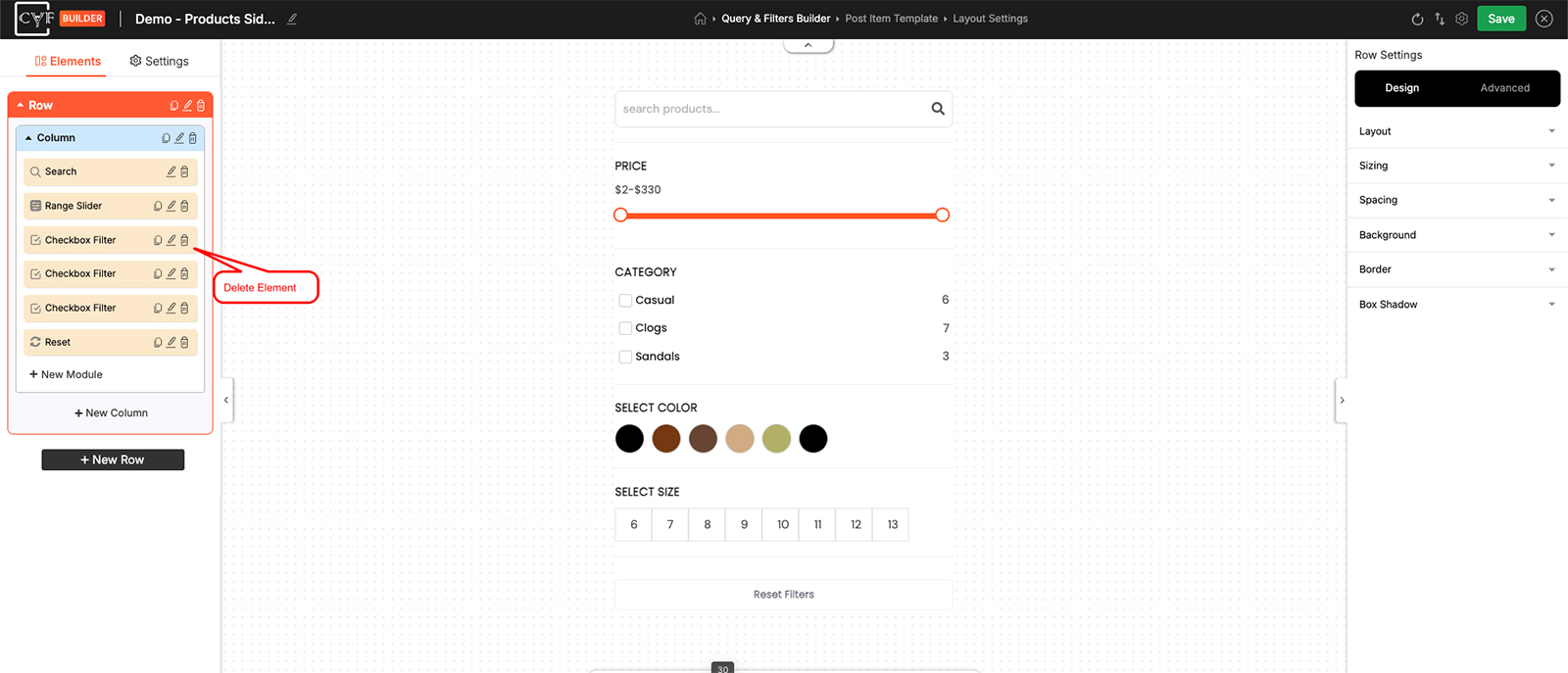
Rows, columns and modules each delete from the same place

Careful
Deleting a row removes its columns and every module in them. If you only meant to remove one module, delete that module rather than its container.
Undoing a deletion
Nothing you delete is written to your site until you save (Publish on a filter that hasn't been published yet, Save after that), so leaving the builder without saving discards the deletion along with everything else you changed. If you've already saved, restore an earlier version from Revisions.

Note
A filter always keeps at least one row. If you try to delete the last one, you'll see "At least one row is required."
FAQ
Does deleting a row delete what's inside it?
Yes - its columns and their modules go too, which is why you're asked to confirm.
I deleted something by mistake - can I get it back?
If you haven't saved, leave the builder without saving. If you have, restore an earlier version from Revisions.
Can I delete every row?
No - a filter always keeps at least one.
Was this page helpful?
Thanks for your feedback!