
Add to cart button module
A buying button that can work the ordinary way, or do the whole job from the listing.
In short
Add to Cart puts a buying button on every result. It can behave the ordinary way - sending the shopper to the product page - or add the product straight from the listing, then leave them where they are, show a message, or take them to the cart or checkout. What the button shows is yours too - WooCommerce's own wording, your own, a label per product type, or an icon alone. Paired with attribute swatches, even variable products can be bought without leaving the listing. Two things here need Pro: adding to the cart with Ajax, and the icon-only button.

Note
This module works with WooCommerce products, so it only applies when you're filtering products.
Button Behaviour
An add-to-cart button in a listing usually does one thing: it sends the shopper to the product page. This module can do that, or it can do the useful thing instead.
| Behaviour | What happens when it's clicked | Plan |
|---|---|---|
| Open Product Page | The ordinary way. The shopper is taken to the product page to buy from there. | ✓ FREE |
| Ajax Add To Cart | The product goes into the cart from the listing itself, with no page reload. The shopper keeps their filters, their scroll position and their place in the results. | ★ PRO |
Selling from the listing itself
Two things are Pro here, and the first is the bigger one. Ajax Add To Cart puts the product in the cart without a page reload, so a shopper who has filtered down to a shortlist can take three things off it without ever leaving the results - and most of what follows on this page depends on it, including the confirmation message and buying a variable product straight from its swatches. The second is Icon Only, for a card too tight to carry words. On the free version the button carries wording and opens the product page.
The second is what makes this worth adding. A shopper who has filtered to a shortlist and wants three of the things on it can take all three without leaving the page - and every trip out to a product page is a chance for them not to come back.
Open Product Page still suits products people need to read about before buying, or shops where quantities and options matter more than speed.
What happens after the add
With Ajax chosen, Action decides what happens next - whether the shopper stays put, gets told it worked, or is moved along.
| Action | What it does |
|---|---|
| None | Nothing visible. The product is added quietly and the shopper carries on browsing. |
| Custom Text | The button's own wording changes to a message of your own for a few seconds, then goes back - so the confirmation appears exactly where the shopper is already looking. |
| Go to the cart | Takes the shopper to the cart page once the product is added. |
| Go to the checkout | Takes them straight to checkout. |
The choice is really about what you want a shopper to do next. Leaving them in the listing suits a shop where people buy several things; sending them to the checkout suits one where they usually buy one and you would rather not give them the chance to wander off.
If you do leave them in place, use the message. Adding to a cart without a page reload is quick but silent, and a shopper who gets no response often clicks again - which is how people end up with two of something. Because the message takes over the button itself, the answer appears under the cursor rather than somewhere else on the page.
These belong to Ajax. With Open Product Page there's no add to respond to, so there's nothing for Action to do.
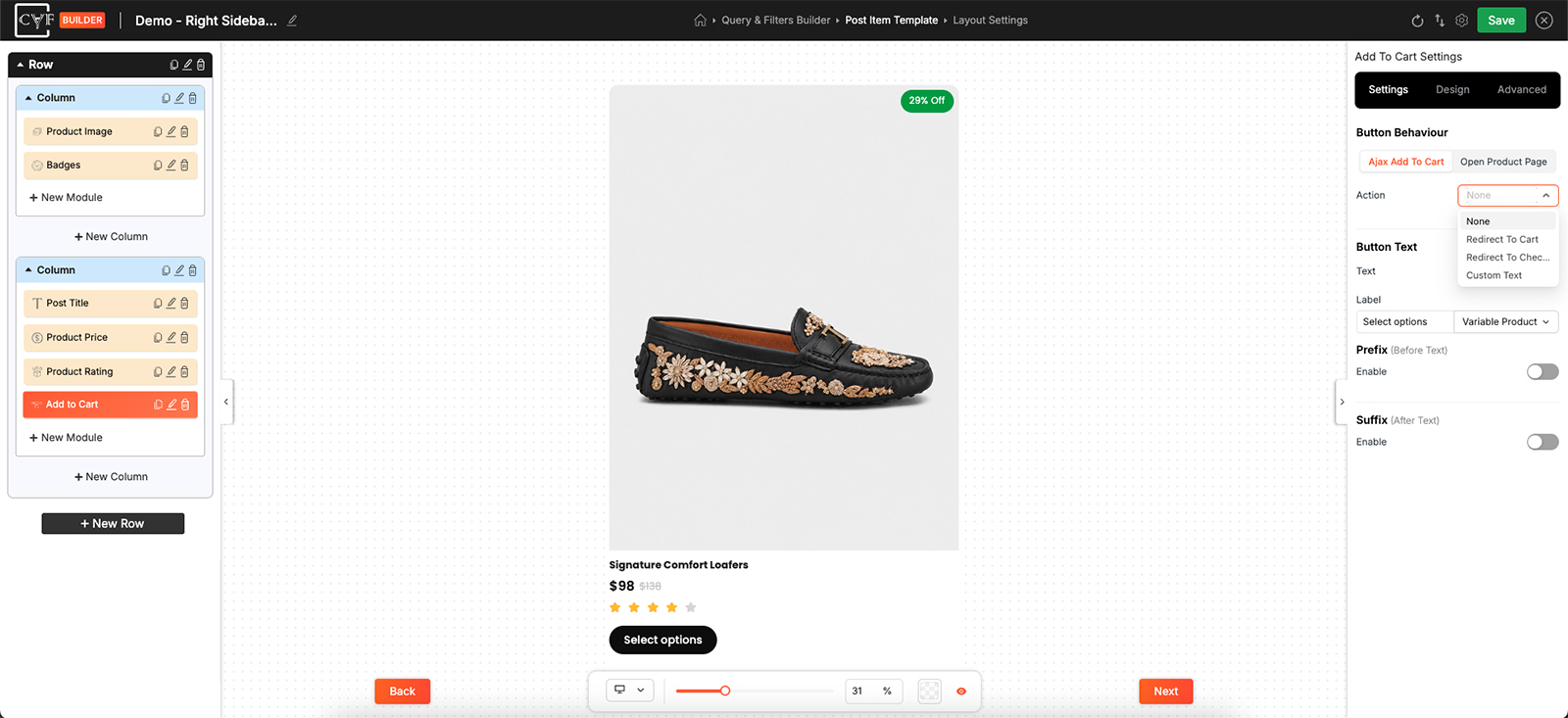
Confirmation that the add worked.
Button Text
| Text | What the button shows | Plan |
|---|---|---|
| WooCommerce default | Whatever WooCommerce would normally say for that product. | ✓ FREE |
| Custom Text | One wording of your own, used on every product. | ✓ FREE |
| Icon Only | No wording at all - just an icon. Useful where the card is tight, or where the button sits beside a price and the words would crowd it. | ★ PRO |
| Custom By Product Type | Wording of your own, set separately for each kind of product. | ✓ FREE |
The last option exists because one label can't serve every product. Choose it and you get a product type selector alongside the wording, so each type carries a label that's true of it.
| Product Type | What the button actually does |
|---|---|
| Simple Product | Adds it to the cart. |
| Variable Product | Sends the shopper to choose options first. |
| Grouped Product | Sends them to a page holding several products. |
| External Product | Sends them to another site. |
| Subscription Product | Starts a recurring purchase. |
Set the wording for each type you actually sell. A label promising to add something to a cart, on a button that in fact opens another website, is the kind of small dishonesty shoppers notice.
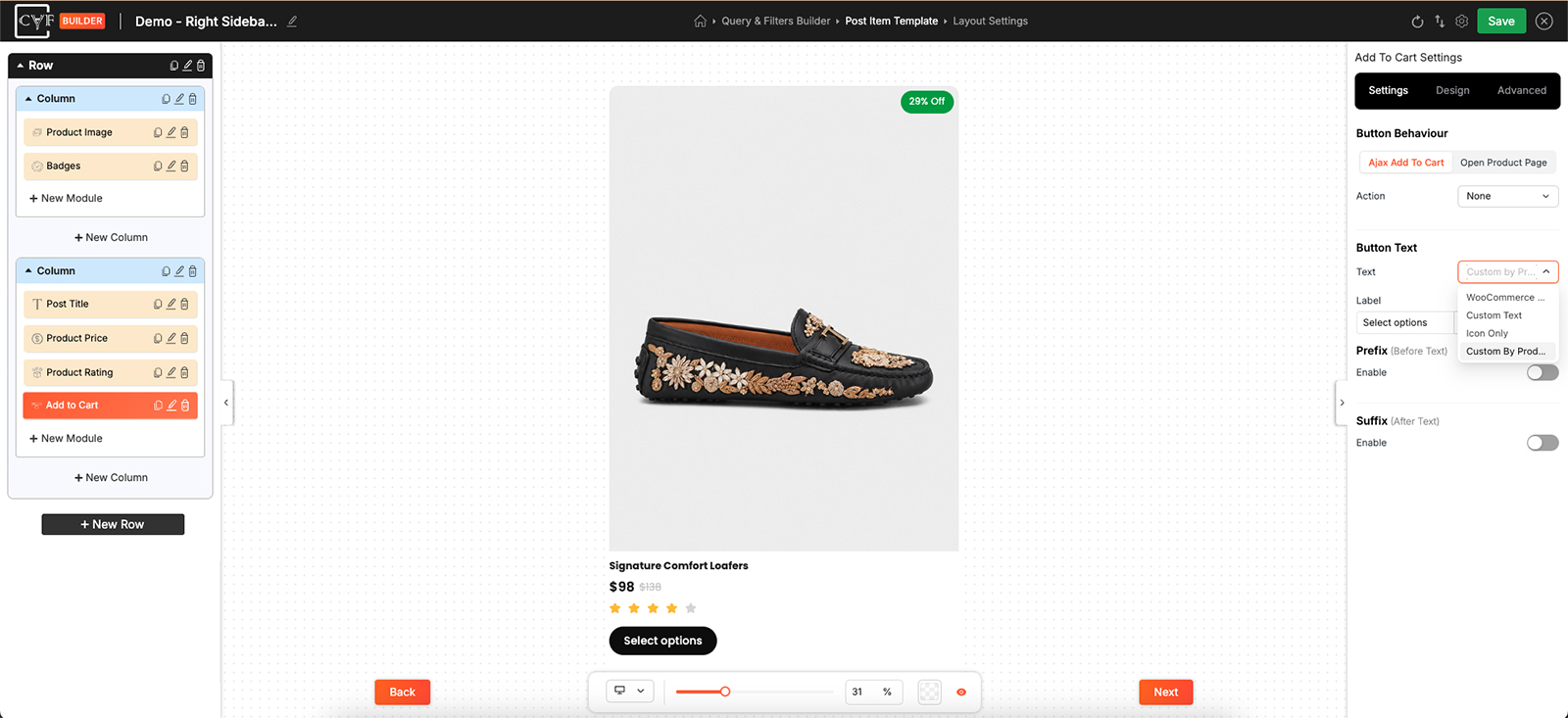
A label per product type.
Variable products, and how to sell them from the listing
A variable product can't normally be bought from a listing, because a choice has to be made first - nobody can add a shoe to a cart without saying which size. So on its own, this button sends the shopper to the product page for those products, whatever the behaviour is set to.
Put the Attribute Swatches module in the same item and that changes. The shopper picks the variation from the swatches - one attribute, or several where the product needs them - and the button adds that exact variation to the cart. No product page, no going back.
This is the pairing that turns a filtered listing into a shop someone can actually buy from. It's worth setting up wherever your variable products have a small number of options: a colour and a size chosen in the card, and the thing is bought.
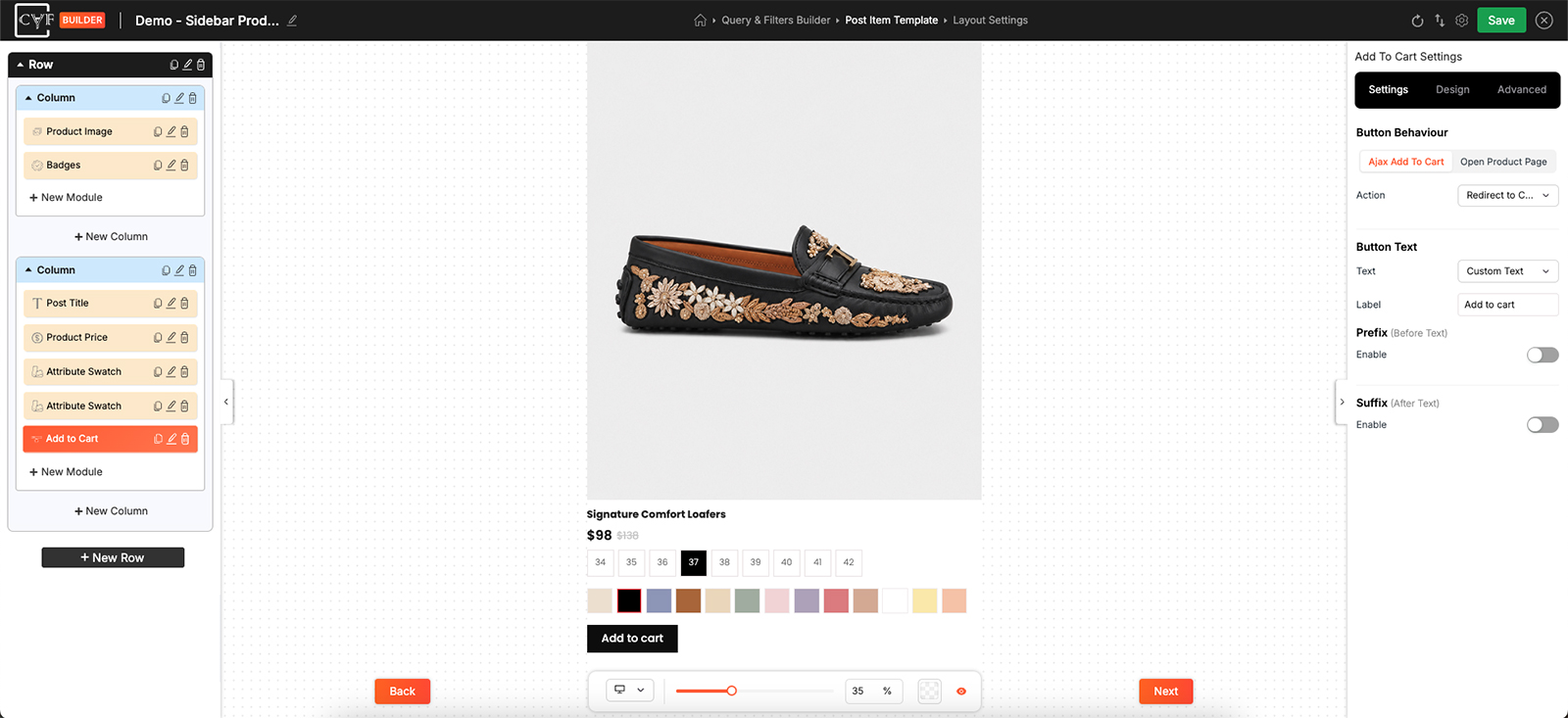
Choosing the variation and buying it, without leaving the listing.
Prefix and Suffix
| Setting | What it does |
|---|---|
| Prefix | Something before the wording. Switch it on and set it. |
| Suffix | Something after it. Same again, chosen separately. |
A cart or basket icon as a prefix is the usual use, and it makes the button recognisable before anyone reads it.
Styling
How it looks comes from the Design tab, with the usual groups - Layout, Text, Sizing, Spacing, Background, Border and Box Shadow
This is the one thing in the item you want people to click, so it can afford to be the boldest element in the card. Give it a background, enough padding to look pressable, and a full width if the item is narrow - a button that reaches both edges is easier to hit on a phone than one floating in the middle.

Tip
Test the whole sequence on your own shop before shipping it: click the button, watch for the message, then check the cart. Silent failures are easy to miss in a builder preview and obvious to a customer.
FAQ
Can shoppers buy without leaving the listing?
Yes - that's Ajax Add To Cart.
Nothing seems to happen when I click the button.
The add is silent unless you say otherwise. Set Action to Custom Text and write a message - the button shows it for a few seconds, then returns to normal.
Can variable products be added from the listing?
Yes, if the item also has the Attribute Swatch module - the shopper picks the variation there and the button adds it. Without swatches there's no way to choose, so the button sends them to the product page.
Can I send shoppers straight to the checkout?
Yes - set Action to go to the checkout.
Can the button say different things for different products?
Yes - set Text to Custom by Product Type and give each type its own wording.
Can the button be an icon with no words?
Yes - set Text to Icon Only.
How do I add a cart icon beside the wording?
Switch on the prefix and set it to an icon. For an icon instead of wording, use Icon Only.
Does this work without WooCommerce?
No.
Was this page helpful?
Thanks for your feedback!