
Reset button
A way back to seeing everything.
In short
Reset clears the visitor's selections across the whole filter in one click. It has two settings - the wording, which is free, and an icon, which is Pro - and everything else about it is styling.
Why it earns its place
A visitor who has narrowed too far and found nothing has two options: undo their choices one at a time, or start over. Without a reset, starting over means reloading the page - and plenty of people simply leave instead.
It's one module and one click, and it's the cheapest thing on this list to add.
Settings
| Setting | What it does | Plan |
|---|---|---|
| Text | The wording shown. | ✓ FREE |
| Show Icon | Adds an icon alongside. Switch it on and you choose which. | ★ PRO |
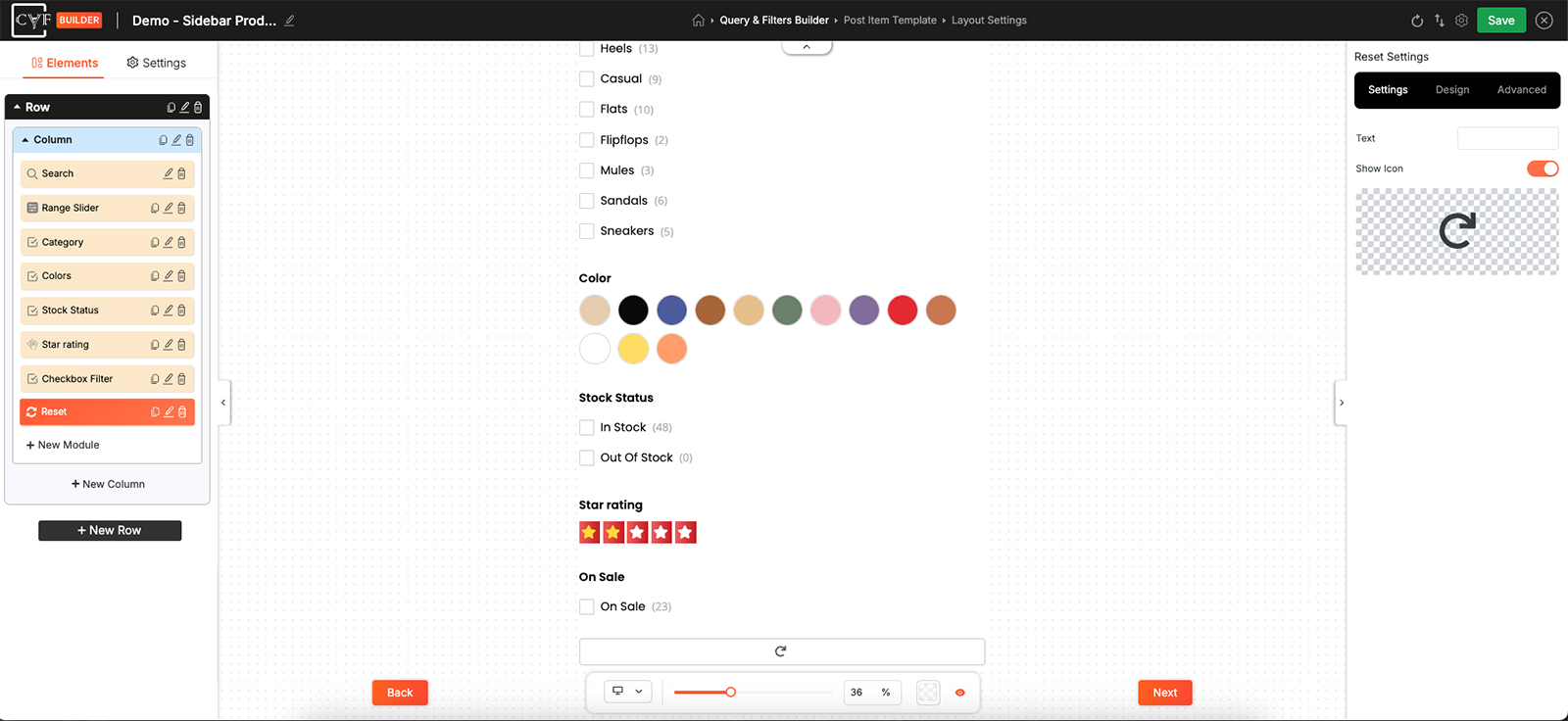
Two settings: the wording, and whether it carries an icon.
An icon on the reset
The wording is yours on either version. With CAF Pro you can add an icon beside it - or clear the text and let the icon stand alone, which is how a reset fits into a filter bar that has no room for a worded button. Once the icon is showing, the Design tab's Layout group arranges it against the text: which comes first, how they line up, and the gap between them.

Tip
Say what it clears, not what it does. Clear all filters tells a visitor exactly what will happen; Reset on its own leaves them wondering whether they're about to lose the page as well.
Styling
Everything about how it looks comes from the Design tab, with the usual groups - Layout, Text, Sizing, Spacing, Background, Border and Box Shadow - so it can be a plain text link or a full button, whichever suits the filter around it.
With an icon showing, the Layout group arranges the icon against the text: which comes first, how they line up, and the space between them.

Note
Keep it quieter than the filters themselves. A reset styled as the boldest thing in the panel invites clicks from people who didn't mean to clear anything.
FAQ
What does it clear?
The selections the visitor has made across the filter.
Can I change the wording?
Yes - the Text setting.
Can it be an icon on its own?
Switch Show Icon on and clear the Text, and the icon is all that's left.
Can I make it look like a button?
Yes - give it a background, padding and a border on the Design tab.
Where should it go?
Below the filters it clears, so a visitor meets it after the choices rather than before them.
Was this page helpful?
Thanks for your feedback!