
Product price module
What each product costs - including what it used to cost.
In short
Product Price shows a product's price in the listing. For variable products, where there isn't one price to show, you choose how the range is handled. A prefix and suffix sit either side, and one of the things a prefix can hold is the regular price - which is how a discounted product shows its old price struck through beside the new one.

Note
This module reads WooCommerce pricing, so it only applies when you're filtering products.
Products with more than one price
A simple product has one price and there's nothing to decide. A variable product has several - one per variation - and a listing has to say something. Display Price As is where you choose what.
| Option | What it shows |
|---|---|
| WooCommerce default | Whatever WooCommerce would normally display for that product, which for a range is both ends of it. |
| Lowest Price | The cheapest variation. |
| Highest Price | The most expensive one. |
Lowest Price and Highest Price exist for exactly this case, and on a shop with variable products they're the settings that make the listing readable. A range takes up a lot of a card and is hard to scan; a single number is easy to compare across a row of results.
Lowest is the more common choice, since it's the number a shopper compares against - though it does mean the price in the listing may not be the price they end up paying. Highest suits a catalogue where the entry-level variation isn't representative of the product. The default keeps the full range, which is the honest option where the spread itself is worth knowing.
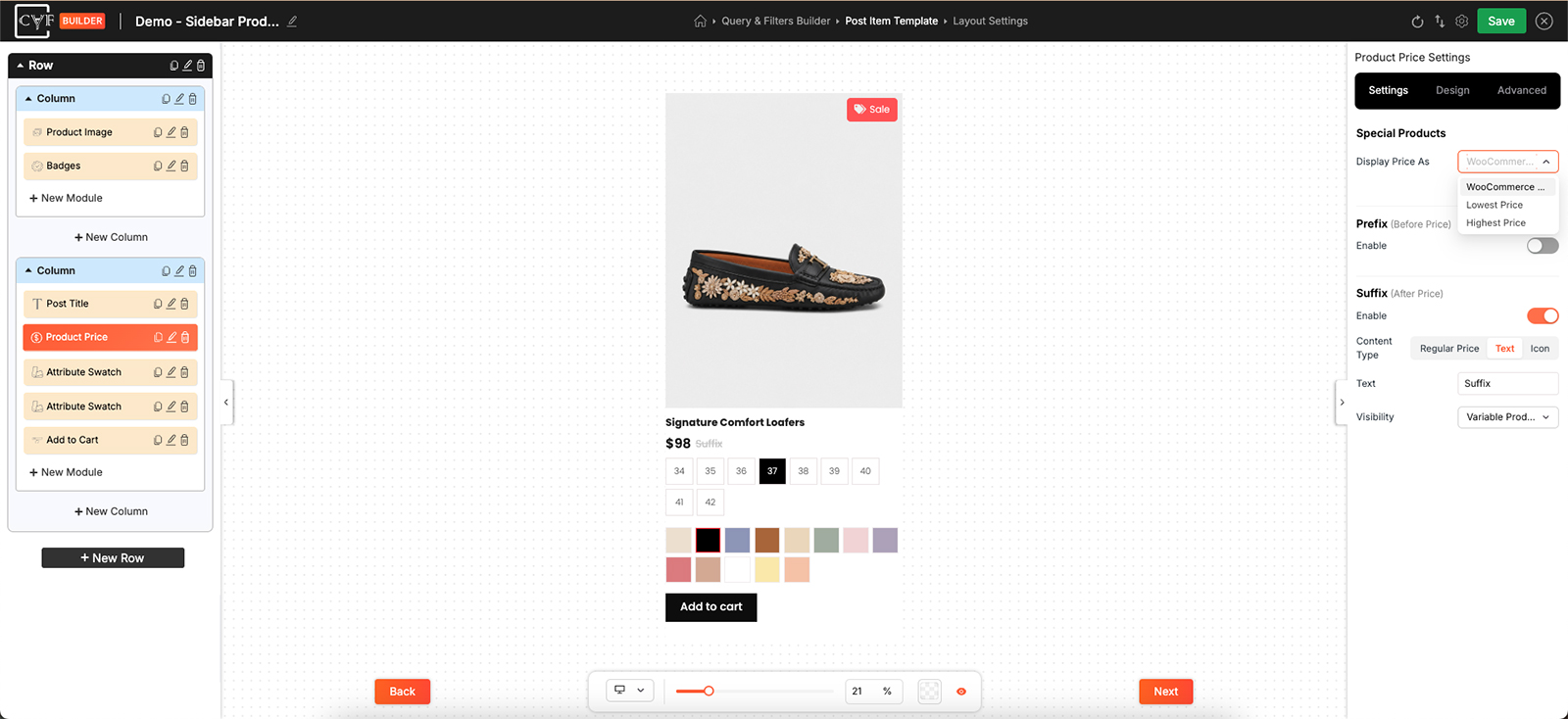
How a variable product's price range is handled.
Prefix and Suffix
With Gallery Images selected, three more settings appear.
| Setting | What it does |
|---|---|
| Prefix | Something before the price. Switch it on and choose what it holds. |
| Suffix | Something after it. Same again, chosen separately. |
Each side takes one of three kinds of content.
| Content Type | What it holds | Plan |
|---|---|---|
| Regular Price | The product's price before any discount. | ✓ FREE |
| Text | Wording of your own. | ✓ FREE |
| Icon | An icon from the library, or your own upload. | ★ PRO |
An icon beside the price
The prefix and suffix are free, and so is putting the old price or a word of your own in them. With CAF Pro they can hold an icon instead - a tag, a delivery mark, a small symbol standing in for from or each. On a price, where a card has very little horizontal room and every extra word competes with the number itself, a mark says the same thing in a fraction of the space.
Showing the old price
Regular Price is the content type worth knowing about. Set a prefix to it and a discounted product shows its original price in front of the current one - the was-and-now pattern every shop uses, built from the two settings rather than needing one of its own.
Style that prefix struck through and in a lighter colour and it reads immediately. Without the strike it just looks like two prices, which is worse than showing one.
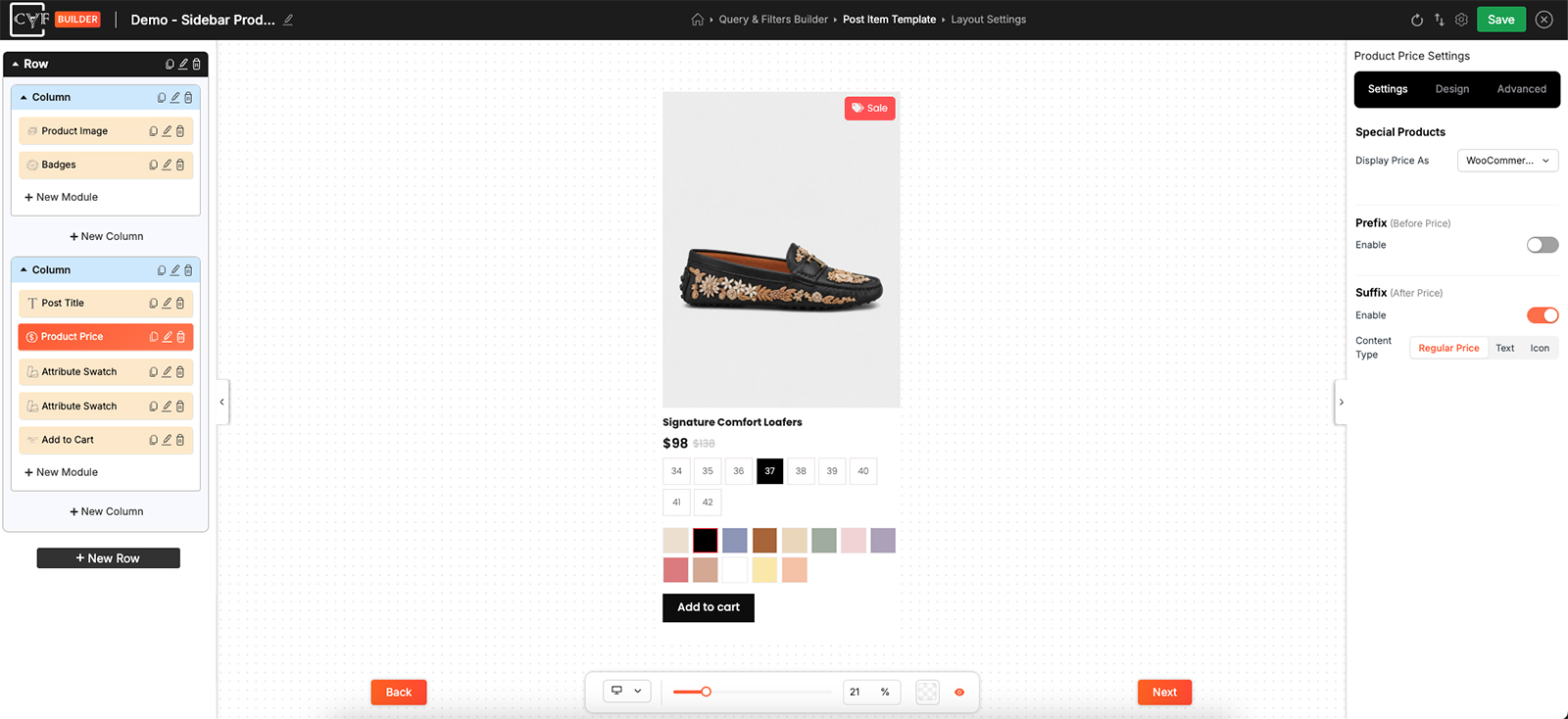
The prefix set to Regular Price, styled to read as the old price.

Tip
Check what this looks like on a product that isn't discounted. Most of your catalogue probably isn't, and whatever the prefix does on those products is what most visitors will see.
Styling
How it looks comes from the Design tab, with the usual groups - Layout, Text, Sizing, Spacing, Background, Border and Box Shadow - with Layout arranging the price against whatever sits either side of it.
Price is one of the two things a shopper reads in a product card, alongside the picture. It can carry more weight than most of the item without looking shouty, and it's usually a mistake to make it the same size as the description.
FAQ
How do I show the old price struck through?
Set a prefix and choose Regular Price as its content type, then style it with a strikethrough.
My variable products show a price range and it's too long.
Set Display Price As to Lowest Price or Highest Price.
Which should I use for a variable product?
Lowest is the usual choice, since it's the number shoppers compare against. The default shows the full range instead.
Can I add a currency word after the price?
Yes - switch on the suffix and set the text.
Does this work without WooCommerce?
No. It reads WooCommerce pricing.
Was this page helpful?
Thanks for your feedback!