
How to change the post type
A filter's post type isn't fixed at creation - you can point an existing filter at something else whenever you need to.
In short
Open Global Settings from the gear icon in the top bar and choose a different post type. Your layout and element styling survive, but every filter module loses its source - along with any icons, images or colours you'd set against individual terms - because terms and fields belong to the post type they came from. You'll be asked to confirm before it applies.
Changing the post type
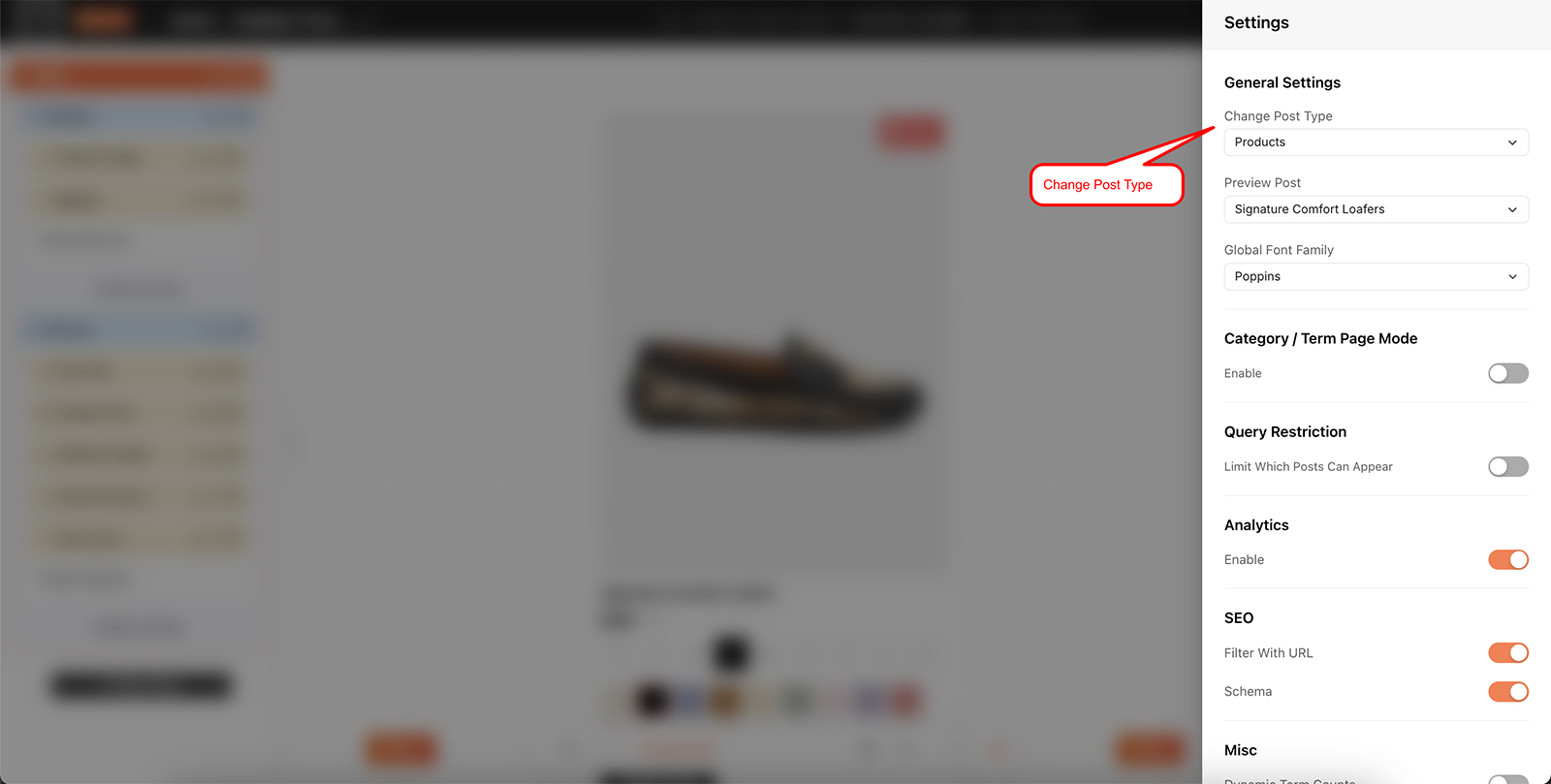
Global Settings applies to the whole filter rather than any one element, so it opens from the gear icon in the top bar rather than from a panel. The post type you chose when creating the filter is set here, and the dropdown offers the same list - every registered post type on your site, with WooCommerce Products among them when WooCommerce is active.
-
Open Global Settings
Click the gear icon in the builder's top bar.
-
Choose the new post type
Pick it from the dropdown. You'll be asked to confirm before the change applies, since it affects every filter module in the build.
-
Set each filter module's source again
Work through your filter modules and select a source for each one. The modules themselves are still there, in the same places, with their styling intact - it's the taxonomy or custom field behind each that has to be chosen again. Anything you'd attached to individual terms or fields goes with it, so icons, images and colours set against particular terms need applying again too.

Warning
Every filter module loses its source when the post type changes, and so does anything set against individual terms - icons, images and colours all go with it. That isn't a fault: a category from your blog doesn't exist on your products, so there's nothing for those settings to stay attached to. Expect to reconnect each module and re-apply its term styling before the filter works again.

Note
What survives is everything you spent longest on: rows, columns, module placement, all of your Design values and the layout settings. What breaks is the connection to the data - the source itself, and anything you'd styled term by term.

Tip
If you're unsure about the change, export the filter first from the import/export icon in the top bar - see Import & export layouts. That leaves you a copy on disk to come back to, independent of the rolling revision limit.
FAQ
Do I lose my layout and styling?
No - rows, columns, modules and all your Design values stay exactly as they are.
Why do my filters stop working after the change?
Each filter module's source belongs to the old post type, so it has to be selected again for the new one.
Do my term icons and colours survive?
No - anything set against individual terms, including icons, images and colours, has to be applied again once the new source is selected.
Where is Global Settings?
The gear icon in the builder's top bar - it applies to the whole filter rather than one element.
Will I be warned before it changes?
Yes - you're asked to confirm first.
Why isn't Products in the list?
Products only appears when WooCommerce is active on the site.
Was this page helpful?
Thanks for your feedback!