
How to add a new module
Modules are added from the Elements panel, inside the column they should belong to.
In short
In the Elements panel, click New Module at the bottom of the column you want to add to. Pick a module from the list, and it appears in that column ready to configure.
Adding a module
Every module belongs to a column, so adding one starts by deciding which column it should sit in. You do that in the Elements panel on the left, where each column has its own New Module button - see Rows & columns for how the structure fits together.
-
Decide which column it goes in
Open the Elements tab on the left and find the column you want the module to sit in. If there isn't a suitable column yet, add a row first - every new row comes with one.
-
Click New Module
New Module sits at the bottom of each column's contents in the tree.
-
Choose a module from the list
The available modules are listed with an icon each. Which ones you see depends on the step you're in - filter modules in Query & Filters Builder, post modules in Post Item Template. See Modules for what each family covers
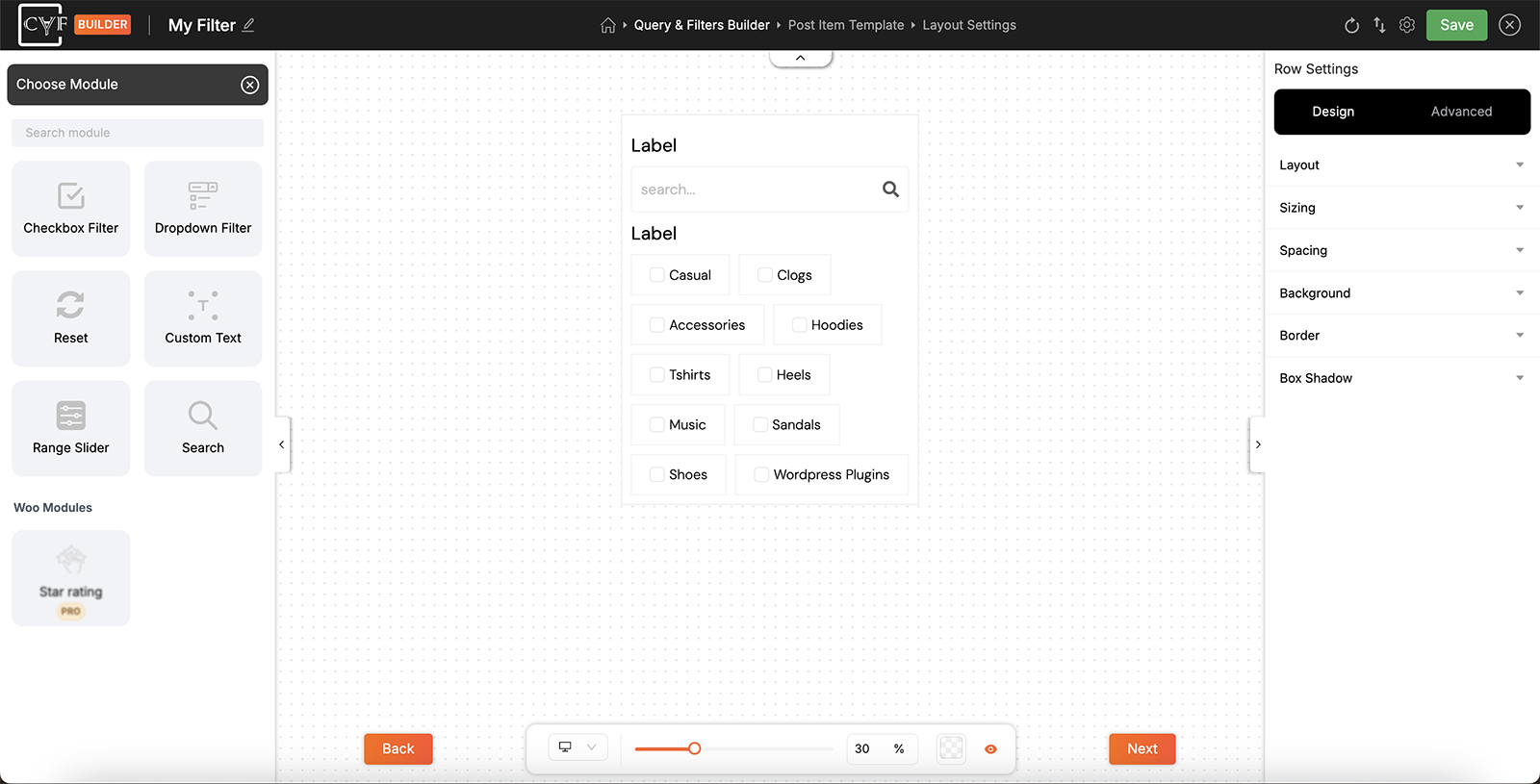
Modules are listed with an icon each.
-
Set it up
The module appears in that column. Click its pencil to open the Settings tab and configure it, then save when you're done.

Note
A filter can only have one Search module. If you already have one and try to add another, you'll see the message "You cannot add more than one Search module."

Tip
Adding a module to the wrong column isn't a problem - drag it to the right one in the Elements tree afterwards.
FAQ
Where do I add modules from?
From the Elements panel on the left - click New Module inside the column you want the module to sit in.
Why can't I see the module I'm looking for?
The list changes with the step you're in: filter modules appear in Query & Filters Builder, post modules in Post Item Template.
Why can't I see the module I'm looking for?
No - a filter can only have one, and you'll get a message saying so.
I added it to the wrong column - do I start over?
No - drag it to the correct column in the Elements tree.
Can I add a second Search module?
No. A filter can only have one, and you'll see the message "You cannot add more than one Search module."
Was this page helpful?
Thanks for your feedback!