
Step 1 : Query & Filters
The first step of the builder, and the one decision that shapes everything after it.
In short
Query & Filters Builder is where you decide what a visitor gets. A toggle at the top picks one of two modes - not both. Query Only means you set the conditions that decide which posts appear, and the visitor gets no controls at all. Design Filters means you build the search boxes, checkboxes and dropdowns on a canvas, and the visitor does the choosing. Whichever mode the toggle is on is the one that runs.
The Query Only / Design Filters toggle
A single toggle sits in the centre of the white band just under the top bar, labelled on both sides. Query Only is on the left, with “No filter UI” beneath it. Design Filters is on the right, with “Add filter options” beneath it. Flipping it switches what fills the screen.
- Query Only - the Build Your Query screen. You set the conditions that decide which posts come back, and visitors get no controls at all: just the results.
- Design Filters - the builder canvas. You assemble the visible filter from rows, columns and filter modules, and visitors narrow the results themselves.
These are alternatives, not layers. A filter is in one mode or the other, and the mode it's saved in is the one that runs on your site - you can't set query conditions and also give visitors a filter to click.
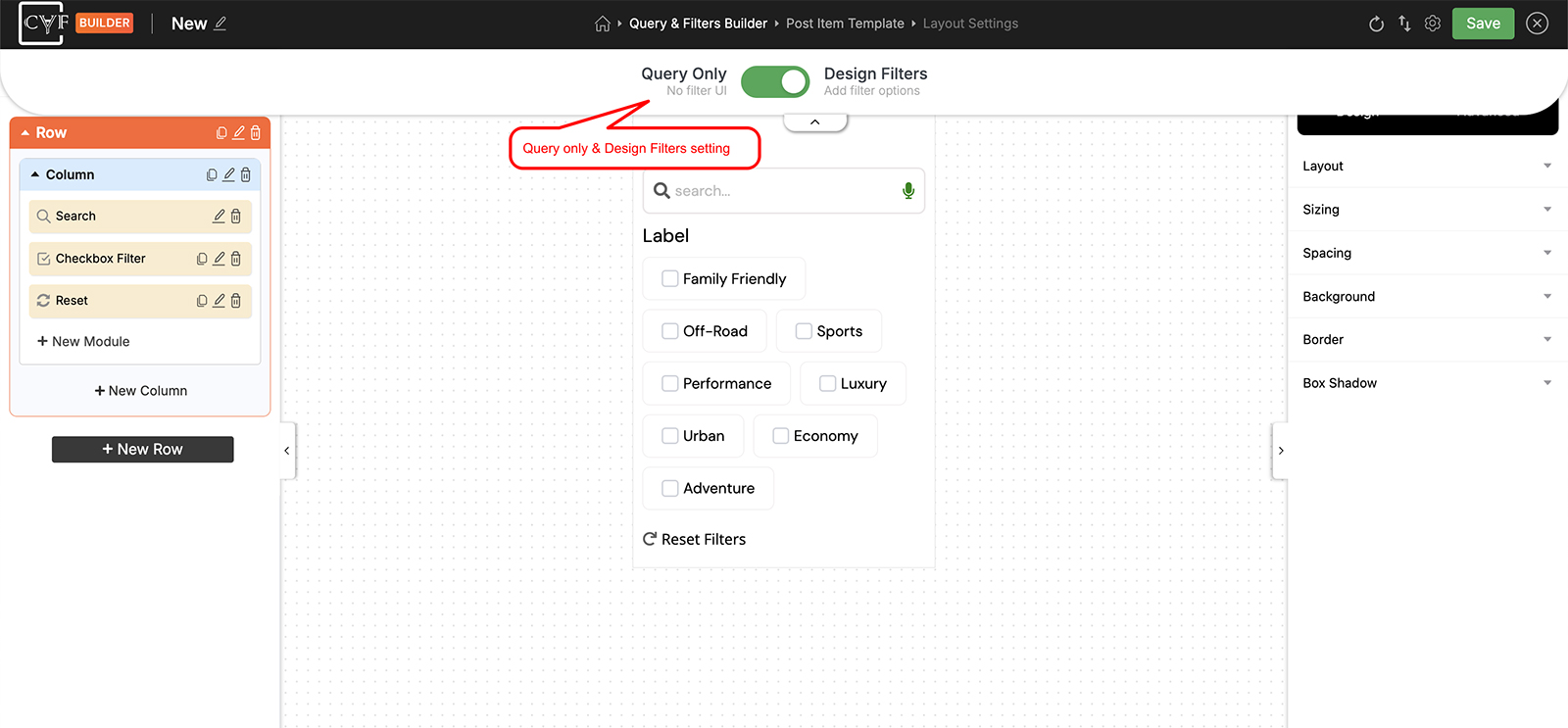
One toggle, two labelled modes.
Building the query
In Query Only, conditions are built on taxonomy terms - categories, tags, and product attributes on a WooCommerce site - and on custom fields, so you can say something like “posts in these categories, published after this date”, or “products in these colours, priced at this value”, and have that be exactly what the page shows.
The conditions themselves are optional. Set none and the filter simply shows everything from the post type you picked in Change post type.
The detail is on Building the query, with Include & exclude posts for naming individual posts in or out, and Taxonomy relation and Meta relation for how multiple conditions combine.
Designing the filters
With Design Filters on, the screen is the standard builder canvas. The Elements panel on the left holds the tree of rows, columns and modules; the panel on the right holds the Design tab for whatever is selected. Filter modules - search, checkboxes, dropdowns, the range slider, reset - are the ones available here.
Building the structure is the same work described in Rows & columns and Add a new module.
This mode has its own way of limiting what can appear, separate from Build Your Query: Query Restriction, on the Settings tab. See Include & exclude posts.

Tip
Reach for Query Only when the page should show one fixed set of things - a “new this week” strip, a run of featured posts or products - and Design Filters when the visitor is meant to do the narrowing.

Note
The toggle belongs to the filter you're editing, and it's saved with everything else when you publish. Switching across to look at the other mode changes nothing on your site until you save - but once you do save, the mode you saved in is the one that runs.
FAQ
Do I have to set query conditions?
No. In Query Only with no conditions set, the filter shows everything from the post type you selected.
Where do I set the query conditions?
Flip the toggle to Query Only - the Build Your Query screen takes over.
What does Query Only look like to a visitor?
Just results. There's no search box, no checkboxes, nothing to click - the query decides what appears.
What can a condition be based on?
Taxonomy terms and custom fields.
Can I use a query and visible filters together?
No - it's one or the other. The toggle picks the mode, and whichever mode you save in is the one that runs.
I built filters, then switched to Query Only - are they gone?
No. Switching modes doesn't delete what you built; it changes which one the filter uses. Switch back and your filters are still there.
Is this step in the free version?
Yes. Query & Filters Builder is available in Free and Pro.
Was this page helpful?
Thanks for your feedback!