
Positioning settings
Sizing sets how big the element itself is - as opposed to Layout, which arranges what sits inside it.
In short
Position sets how the element is placed, and the Top, Right, Bottom and Left offsets shift it from there. Z Index decides which element sits on top where two overlap, and Overflow decides what happens to content that doesn't fit. Most layouts never need this group at all.
The controls
Positioning is the first group in the Advanced tab. Position comes first because everything under it works against the mode you choose there.
| Control | What it does |
|---|---|
| Position | How the element is placed, and what the offsets below are measured against. The modes are described under the table. |
| Z Index | Which element sits on top where two overlap. A higher number sits above a lower one. |
| Top, Right, Bottom, Left | How far the element is shifted from each edge. Left on auto, they have no effect. |
| Overflow | What happens to content that doesn't fit inside the element. |
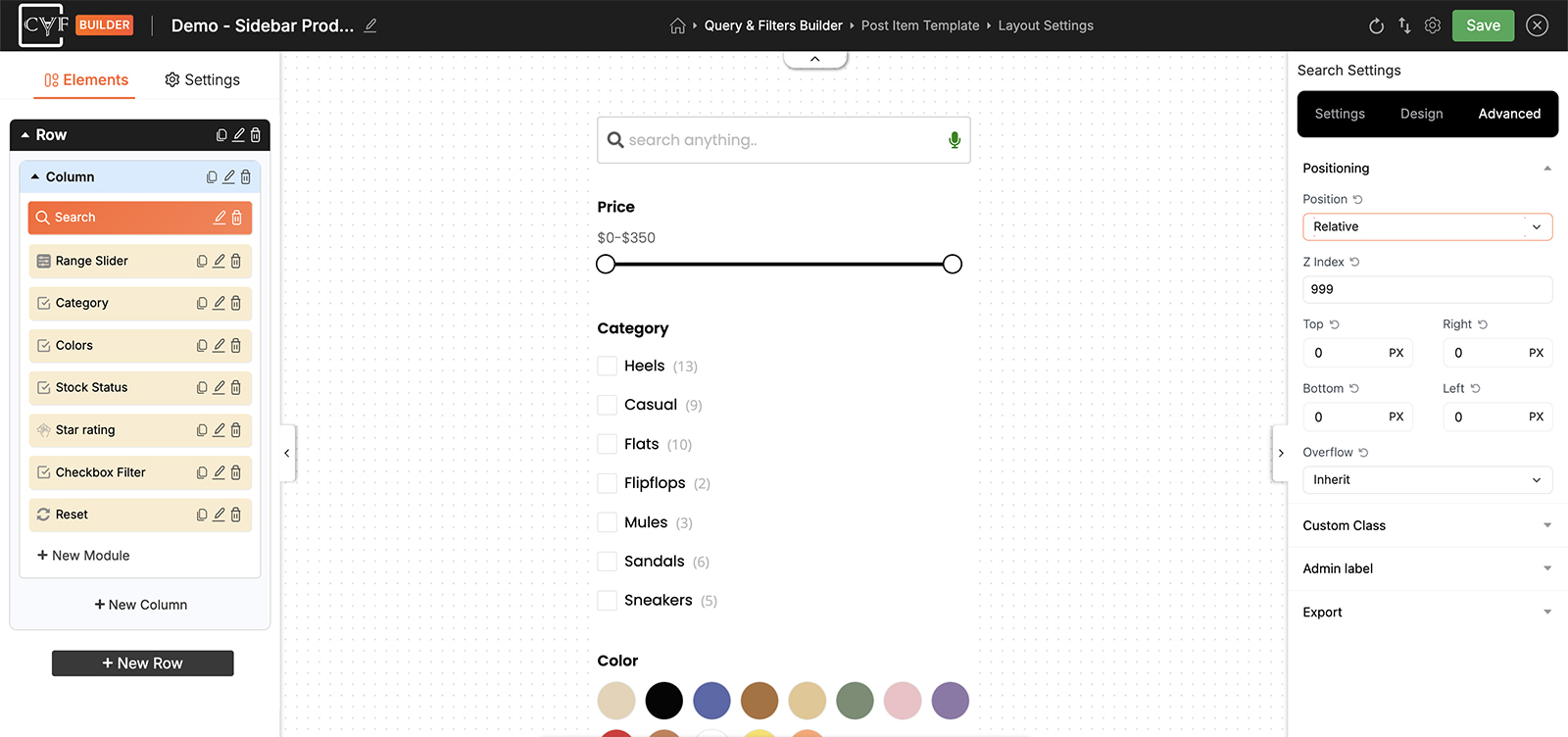
Position first; the offsets work against it.
Position modes
The Position dropdown usually offers these:
Settings Table
| Mode | What it means |
|---|---|
| Static | The element stays where it naturally falls. The offsets have nothing to work against and do nothing. |
| Relative | The element keeps its place in the flow, and the offsets nudge it from there. Everything around it stays put. |
| Absolute | The element is lifted out of the flow and placed against its nearest positioned parent. The space it occupied closes up. |
| Fixed | The element is lifted out of the flow and stays put as the page scrolls. |
| Inherit | Takes whatever the parent element is using. |
Which of these you're offered can change with the element and how it's set up, so go by what's actually in the dropdown rather than expecting all five every time.

Tip
Overlapping is the usual reason to come here. Sitting a label over the corner of a featured image, for instance, means positioning the label and giving it a Z Index high enough to sit above the image rather than behind it.


Note
Positioning is per device like the rest. If you do position something by hand, check it at Tablet and Mobile in the bottom bar - an offset that looks right on a wide screen rarely survives a narrow one untouched.
FAQ
I set Top and Left but nothing moved - why?
Check Position first. On Static the offsets have nothing to work against, so nothing happens until you choose another mode.
What's the difference between Relative and Absolute?
Relative keeps the element's place in the flow and nudges it from there. Absolute lifts it out entirely, so the space it took up closes up behind it.
How do I make one element sit on top of another?
Give it a higher Z Index than the element it should cover.
My content is spilling outside its element - what do I change?
Overflow decides what happens to content that doesn't fit.
Do I need Positioning for a normal filter layout?
No - Layout and Spacing cover almost everything. This group is for overlapping and other special cases.
Was this page helpful?
Thanks for your feedback!