
Step 2 : Post Item
The second step of the builder: designing the one result, which every result then follows.
In short
Post Item Template is where you design a single listing item - the card, row or block that stands for one post or product. You build it from rows, columns and modules exactly as you build a filter, and the canvas shows it filled with real content so you can judge it against a genuine title and image. Whatever you design here is repeated for every result the filter returns.
One item, repeated
You are not laying out a page of results here - you are designing one result. A card with an image above the title and an excerpt is one item, and so is a product card with a price and an add-to-cart button; the filter then renders that same arrangement for every result it returns. Change the design once and every result changes with it.
How those items are then arranged - how many across, how they page - belongs to the next step, Step 3 : Layout.
Building it
The canvas works the same way it does when you build a filter. Add rows and columns for the structure, then place modules inside the columns for the content. Selecting anything opens its settings, with the Design and Advanced tabs alongside.
The modules on offer are the ones that describe a post: image, title, description, author, date, terms, a button. On a WooCommerce site the product modules join them - price, rating, add to cart and the rest. Filter modules don't appear here, because nothing on this step is for the visitor to interact with.
Working against real content
The canvas doesn't show dummy text. It shows one of your own posts, so you can see exactly how your item will look once it's live.
You choose which post that is. Open Global Settings, find Preview Post, and pick any post or product from the list - the canvas immediately shows the item filled with that post's own title and image, and its price too if it's a WooCommerce product. Pick a different one and the canvas updates again.
Try it with your most awkward post: the one with the longest title, or an image that isn't the same shape as the others. If the item still looks right with that one in it, it will look right with all of them.
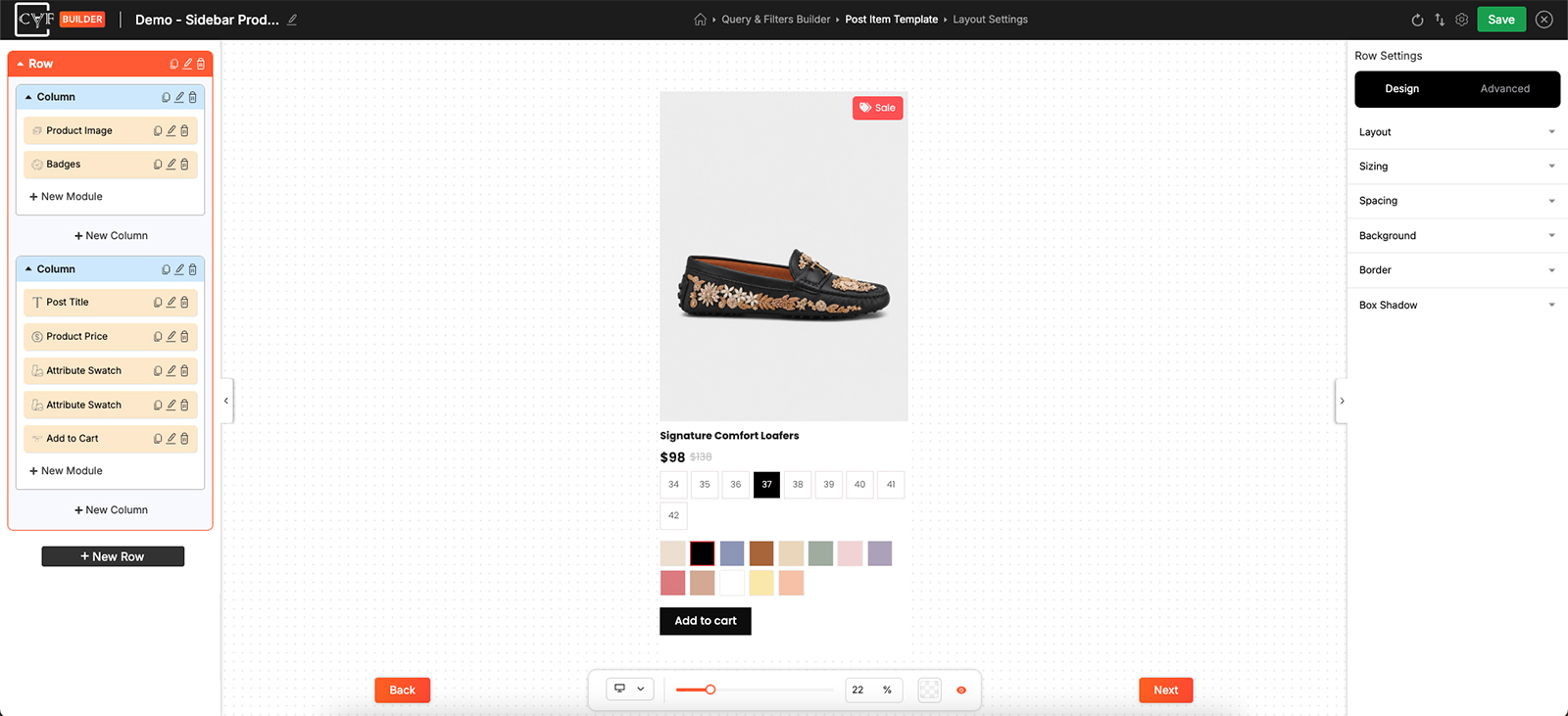
One item, built from an image column and a text column.

Tip
Build the item narrow. Results usually sit several across, so an item designed at full canvas width will look cramped the moment the layout puts three of them in a row. The device and zoom controls under the canvas help you check it at a realistic size.

Note
This step is skipped entirely if the filter uses an existing layout, because your theme or shop is rendering the results rather than CAF.
FAQ
Do I design every result?
No - you design one, and it's repeated for every result.
Why can't I see the filter modules here?
They belong to Query & Filters Builder. This step only offers modules that describe a post.
Which post is shown on the canvas?
The one set as Preview Post in Global Settings.
Where do I set how many items appear per row?
In Layout Settings, the next step.
Was this page helpful?
Thanks for your feedback!