
How to use the template library
The Template library holds ready-made filter and post item layouts, so you can start from a working design rather than an empty canvas.
In short
Open the import/export icon in the top bar and click Import From Library. Pick a category on the left - Full Filter Layout, Filter, Single Post Item or Layout Settings - then choose a template from the thumbnails. You can also import from a file instead of the library. Once it's in, everything is yours to edit exactly like something you built yourself.
Opening the library
The Template library is opened from the import/export icon in the top bar, so it's available while you're building rather than only when you start. The dialog has Import and Export tabs; under Import, click Import From Library to browse templates, or Choose File to bring in a design you've saved or been sent. See Import & export layouts.
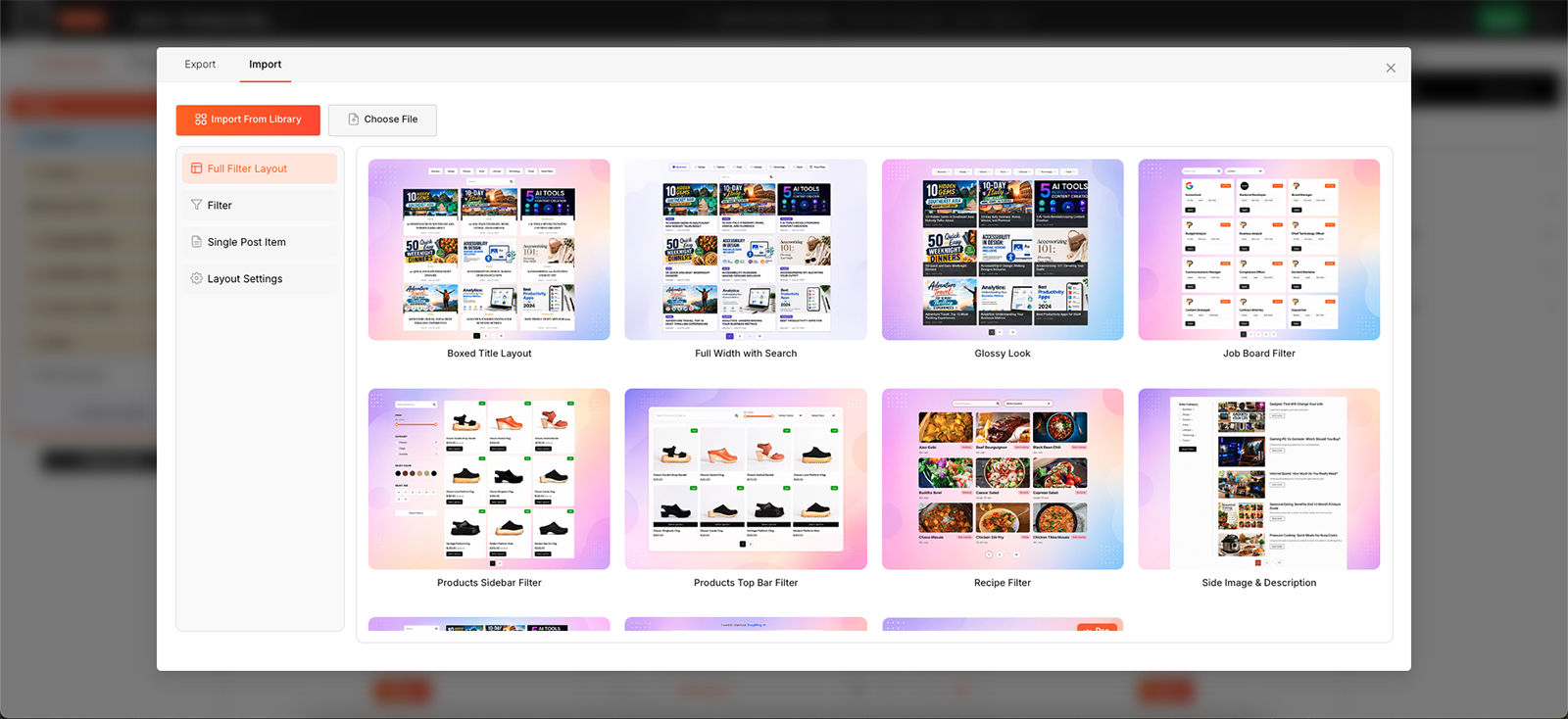
Templates are browsed as thumbnails, grouped by what they bring in.
Choosing what to bring in
The library isn't all-or-nothing. The categories down the left side of the dialog let you bring in a whole design or just one part of it, matching the step it belongs to.
| Category | What it brings in |
|---|---|
| Full Filter Layout | The complete design - filter, post item and layout settings together. |
| Filter | Just the filter, as built in Query & Filters Builder. Choose Full Filter for a complete filter, or Checkbox, Dropdown, Range Slider, Search or Reset to add a single ready-styled module. |
| Single Post Item | Just the post item design, as built in Post Item Template. |
| Layout Settings | Just the layout settings from step 3. |
Ready-made module styles
Each module tab in the Filter category offers many ready-made designs, so you can start from a finished look instead of styling from scratch. After importing a module, select its data source in the module's Settings tab, because templates don't carry your site's taxonomies or terms.
Applying a template replaces the part it covers. Full Filter Layout replaces the whole design, a Full Filter template replaces the filter, Single Post Item replaces the post item, and Layout Settings replaces the layout settings. A single module (Checkbox, Dropdown, Range Slider, Search or Reset) is added to your existing filter instead. If you might want your current design back, export it first from the Export tab.

Tip
Templates marked Pro are available with Category AJAX Filter Pro, which adds more layouts for blogs, custom post types and WooCommerce.
FAQ
Where do I open the Template library?
From the import/export icon in the top bar, then click Import From Library.
Can I edit a template after applying it?
Yes - it becomes ordinary rows, columns and modules that you can change however you like.
Do I have to import a whole design?
No - the categories let you bring in just the filter, just the post item, or just the layout settings.
Can I import a template from a file?
Yes - use Choose File in the Import tab instead of Import From Library.
Was this page helpful?
Thanks for your feedback!