
Float button settings
Keeping the filter out of the way until a visitor asks for it.
In short
Filter Position has two settings. Inline leaves the filter on the page, where you placed it. Float takes it off the page and puts a button there instead: the visitor taps the button and the filter slides in as a panel. Choosing Float opens the settings for it - the button's text and icon, which side the panel comes from, and the overlay behind it.
Inline or Float
Filter Position, on the Settings tab of Layout Settings, decides whether the filter is on the page or behind a button.
| Setting | What the visitor sees |
|---|---|
| Inline | The filter sits on the page, wherever you positioned it. |
| Float | A button sits on the page. Tapping it slides the filter in as a panel. |
Inline is the arrangement described on filter & listing positions - filter to the left, right, above or below the results. Switch to Float and that arrangement stops applying, because the filter is no longer taking up room in the layout.
Setting up the button and panel
Choosing Float reveals its own settings. They fall into three parts: the button itself, the panel it opens, and what happens to the page behind.
| Setting | What it does |
|---|---|
| Button text | The wording on the button - Filters, Refine, and so on. |
| Button icon | The icon shown with it. |
| Panel position | Which side the filter slides in from. |
| Overlay | The shading laid over the page while the panel is open. |
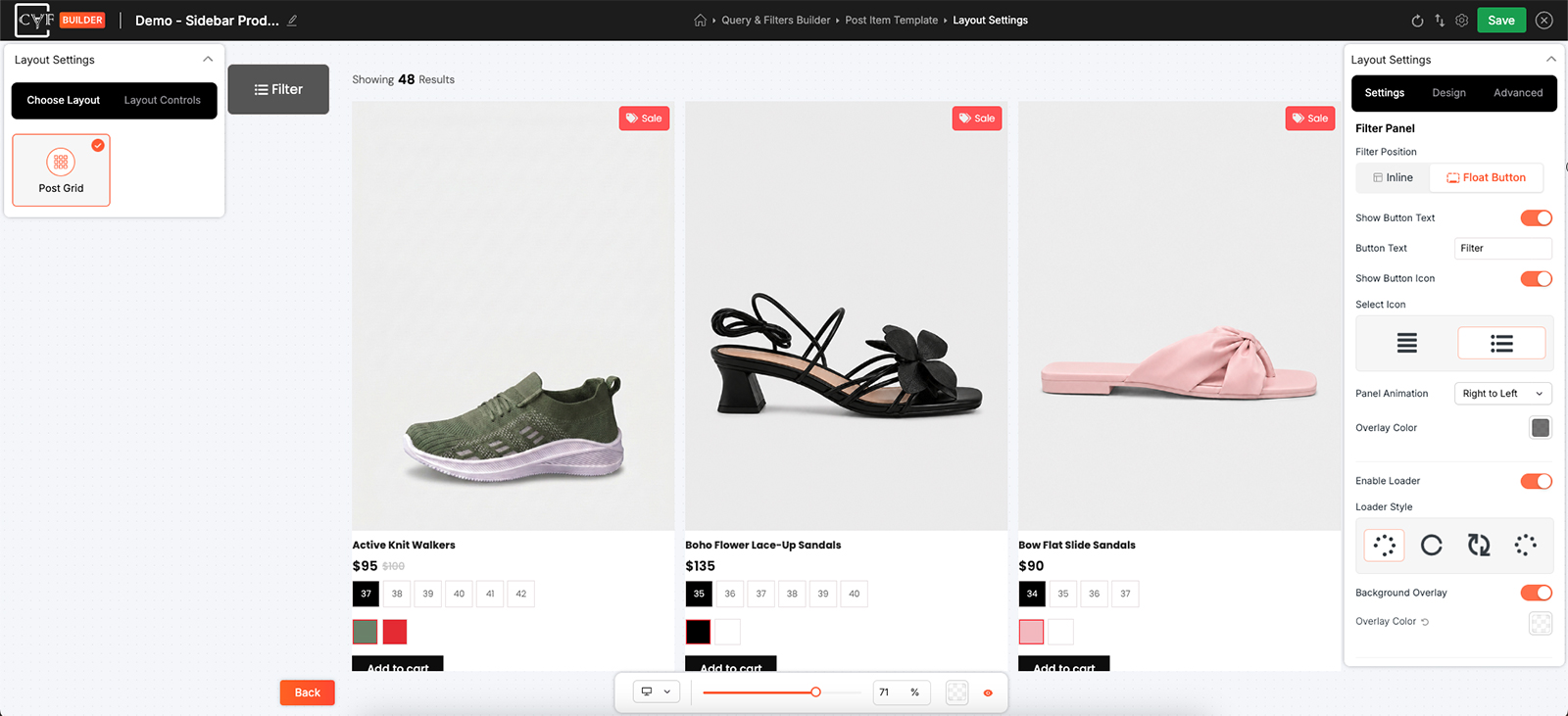
The button, the panel and the overlay behind it.
Styling the button and the panel
Switching to Float changes the Design tab too, because there are now two different things to style. A second row of tabs appears: Container and Float Button.
| Tab | What it styles |
|---|---|
| Container | The containers holding the results - the outer wrapper, the post layout, and the slide panel the filter now lives in. |
| Float Button | The button itself: its text, background and the rest of its appearance. |
Inline, the third container is the filter sitting in the page. Float replaces it with the slide panel, so the Design group that used to style the filter in place now styles the panel it slides in from. The groups themselves - Layout, Sizing, Spacing, Background, Border and Box Shadow - work as they do everywhere else.

Tip
This is a phone-first arrangement. A sidebar that works on a desktop can push the first result off a small screen entirely, and a button gives that space back - the filter is one tap away rather than something to scroll past.

Note
Name the button for what it does. Filters is understood everywhere; something cleverer usually isn't, and a visitor who doesn't recognise the button never finds the filter at all.
FAQ
Where do I turn this on?
Filter Position, on the Settings tab of Layout Settings. Set it to Float.
I can't find the float button settings.
They appear once Filter Position is set to Float - on Inline there's nothing to configure.
What happens to where I positioned the filter?
It no longer applies. A floating filter isn't in the layout, so left, right, above and below don't come into it.
Can I change the button wording?
Yes - button text and icon are both yours to set.
Which side does the panel open from?
Whichever you choose in the panel position setting.
How do I restyle the button?
The Float Button tab, which appears on the Design tab once Filter Position is set to Float.
Where did the filter go on the Design tab?
It's now the slide panel. Float takes the filter out of the page, so that container becomes the panel it slides in from.
Was this page helpful?
Thanks for your feedback!