
How to export a module
The Export group saves whatever you've selected - a row, a column or a module - as a file of its own, along with everything inside it.
In short
Open Export at the foot of the Advanced tab and click the button - on a module it reads Export Module JSON, and the wording follows whatever you've selected. A JSON file downloads, carrying that element's settings and styling. Export a container and everything inside it comes too, so exporting the row that holds your filter takes the whole filter with it.
Exporting the element
Export sits at the bottom of the Advanced tab. There's a single button, and clicking it downloads the file. The wording follows what you have selected, so on a module it reads Export Module JSON, with the equivalent on a row or a column.
A container brings its contents with it. Exporting a column takes the modules inside it, and exporting a row takes its columns and their modules - so if your filter sits in a single row, exporting that row exports the working filter, ready to drop into another build.
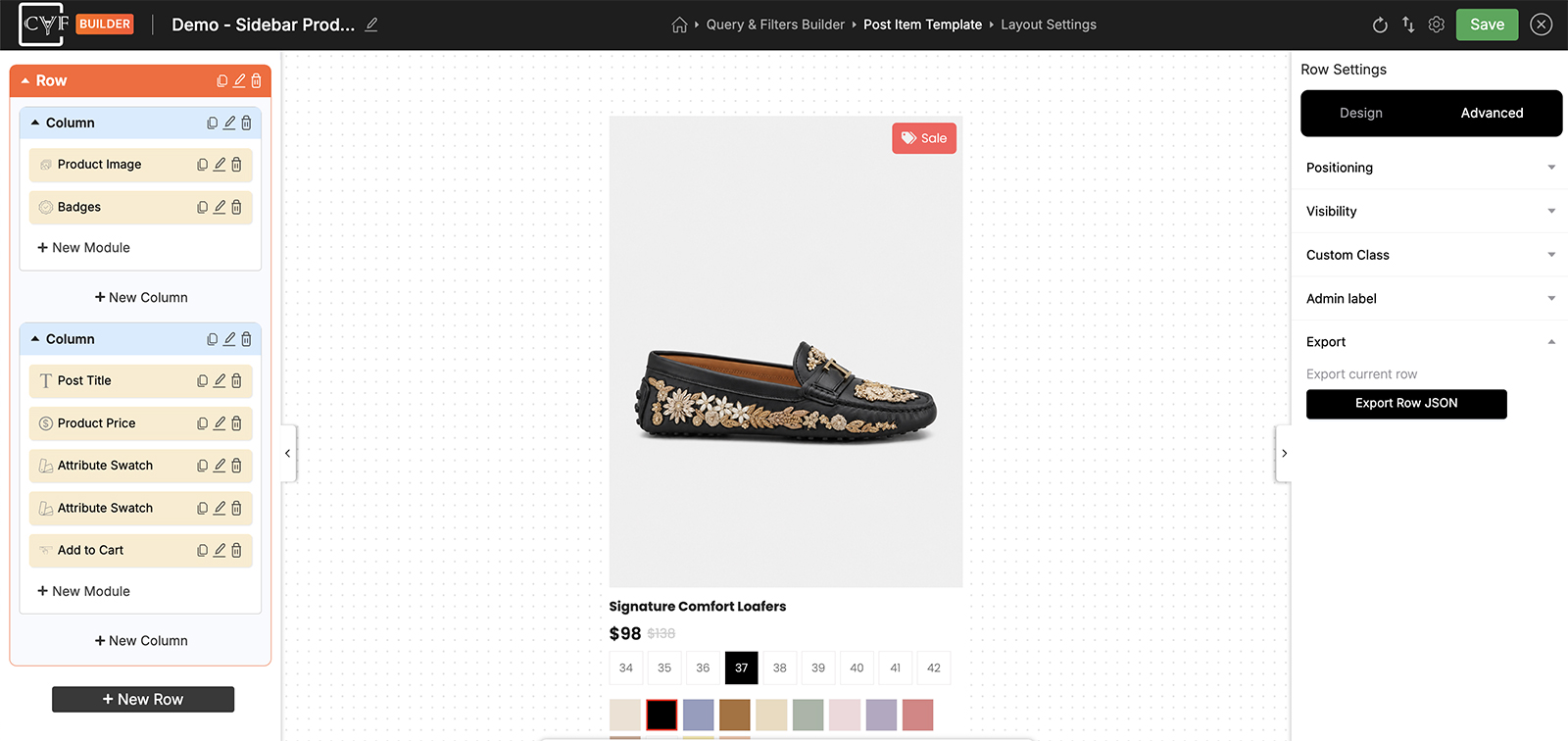
One button, exporting just the element you're on.

Note
What this can't reach is anything outside the element you've selected - the post item design, the layout settings, or the filter and the listing together. Those go through the import/export icon in the top bar, as described in Import & export layouts.
Bringing it back in
There's no import button here, because importing happens where you'd normally add something new: click New Module, New Column or New Row in the Elements panel and choose the Import option instead of creating an empty one. Import & export elements covers both halves.

Warning
If the element is a filter module, select its source again once it arrives in the other filter, and re-apply anything attached to individual terms - icons, colours and images. Everything else comes across unchanged.
FAQ
What file do I get?
A JSON file containing that element and everything inside it.
How do I import it again?
Click New Module, New Column or New Row in the Elements panel and choose the Import option - matching the level you exported.
Can I export a whole filter from here?
If the filter sits in one row, yes - exporting that row takes its columns and modules with it. To move more than that, such as the post item design or the layout settings, use the import/export icon in the top bar.
Will an imported filter module work straight away?
Almost - you'll need to select its source again, since term data doesn't travel with it.
Was this page helpful?
Thanks for your feedback!