
Star rating filter
Letting shoppers filter by how well a product is rated.
In short
The Star Rating filter works on the WooCommerce product rating - the average of the reviews a product has received. It can appear as a list of star rows to tick, or as a single row of stars to click through, with up to ten stars either way. An operator decides whether a choice means that rating and above, that rating and below, or exactly that rating.

Note
This module reads the WooCommerce product rating, so it only applies when you're filtering products. On posts or a custom post type there's nothing for it to work with.
Two ways to show it
Display As decides the shape of the control, and the two options ask the visitor for the same thing in different ways.
| Display As | What the visitor sees | Suits |
|---|---|---|
| Stars List | A row of stars for each rating level, stacked - five stars, then four, then three, and so on. The visitor ticks the rows they want. | A sidebar, where the levels read as a list of choices like any other filter. |
| Star Picker | A single row of stars. The visitor clicks the star at the level they want. | A compact space, or a filter bar where one line is all there is. |
Both go up to ten stars, so a site rating out of ten rather than five is catered for.
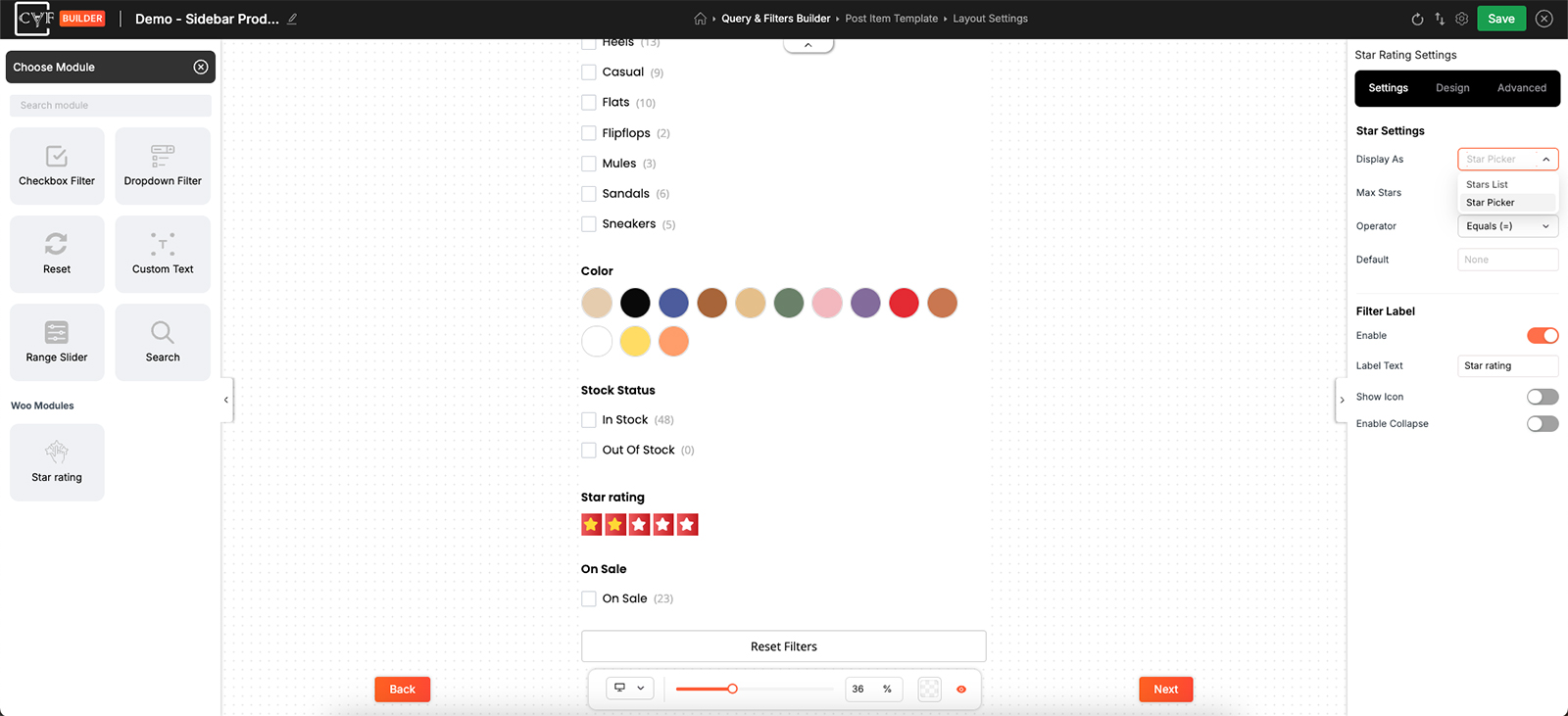
The same filter, asked two ways.
Star Settings
| Setting | What it does | Default |
|---|---|---|
| Display As | Stars List or Star Picker. | Stars List |
| Max Stars | How many stars the scale runs to, up to ten. | 5 |
| Operator | How a chosen rating is matched - see below. | Greater Than Or Equals |
| Default | A rating the filter starts on, if you want one. | None |
The operator
This is the setting that decides what a visitor's click actually means, and it's worth getting right.
| Operator | Choosing four stars returns |
|---|---|
| Greater Than Or Equals (>=) | Products rated four and above. |
| Less Than Or Equals (<=) | Products rated four and below. |
| Equals (=) | Products rated exactly four. |
Greater than or equals is what shoppers expect. Someone clicking four stars is setting a floor - they want the good ones, not the ones rated precisely four - and the other two options exist for cases where that isn't what you mean.
Allow Multiple Selection
Whether a visitor can have more than one rating level applied at once, or only one at a time.
Filter Label
The label above the module. Enable turns it on, Label Text is the wording, Show Icon adds an icon beside it, and Enable Collapse lets visitors fold the module away by clicking the label.
Styling
The Design tab has two tabs: Container for the block holding the label and the control, and Single Item for the rating rows themselves. Single Item carries the usual groups - Layout, Text, Sizing, Spacing, Background, Border and Box Shadow.
Inside those groups, a target picks what's being styled: Item for the row as a whole, or Stars for the stars within it. Alongside sit three states - Default, Hover and Selected.
Selected is the one that carries this module. Stars are the whole interface here, so the difference between a chosen rating and an unchosen one has to be visible in the stars themselves; without it a visitor has no way of telling what's applied. Hover matters nearly as much, because on a picker the stars only look clickable if they respond.
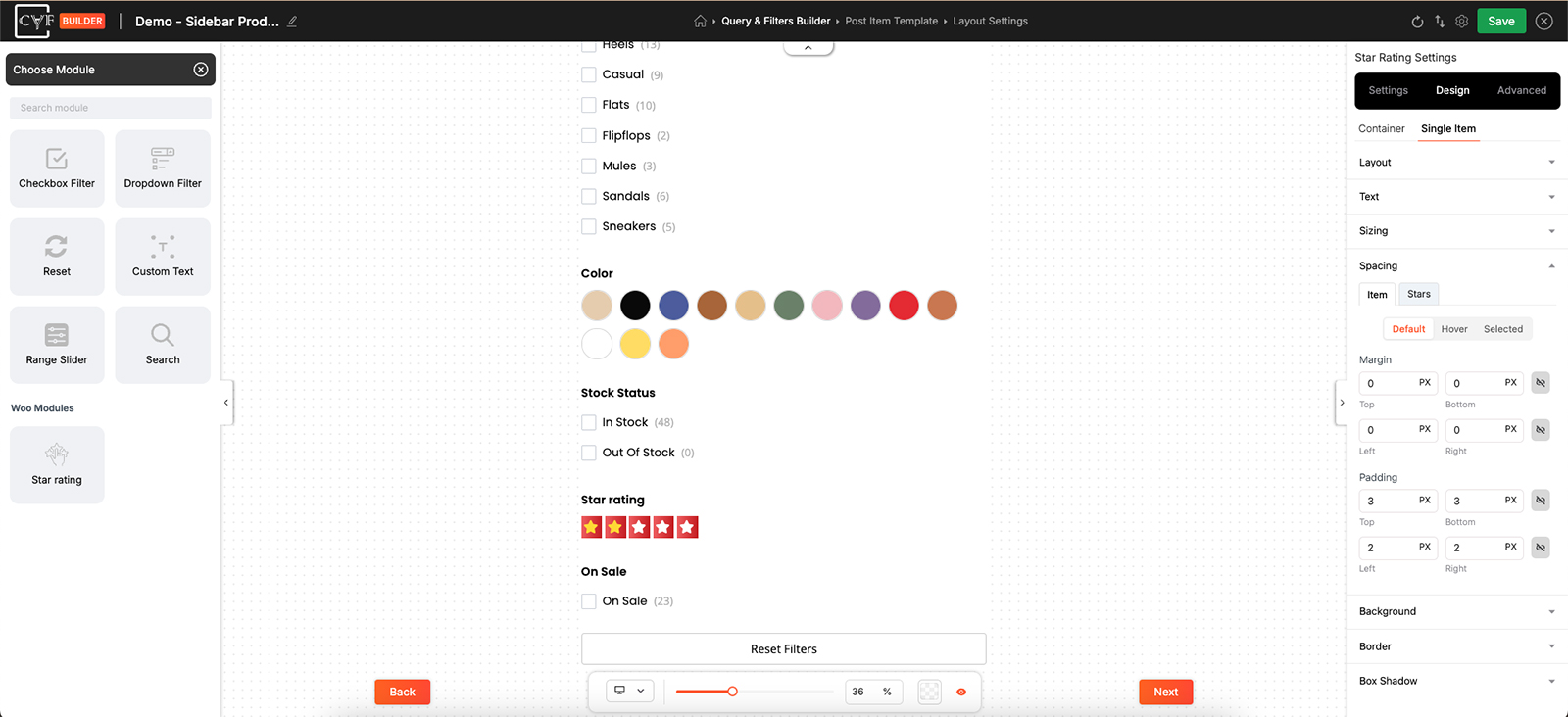
The row and the stars, styled separately in each state.

Tip
Colour the Selected state before anything else, then check it against Default at a glance. If you have to look twice to tell which rows are chosen, the contrast isn't doing its job.
FAQ
Does this work without WooCommerce?
No. It reads the WooCommerce product rating, so it needs WooCommerce and products with reviews.
What's the difference between Stars List and Star Picker?
Stars List shows a row per rating level to tick. Star Picker is one row of stars to click at the level you want.
Can I use a scale other than five?
Yes - Max Stars goes up to ten, in both views.
Choosing four stars returns products rated five as well. Is that wrong?
No - that's the Greater Than Or Equals operator, which treats a choice as a minimum. Switch to Equals if you want exactly that rating.
How do I show only products rated exactly three?
Set the Operator to Equals.
Can visitors apply more than one rating at once?
Yes, with Allow Multiple Selection on.
Visitors can't tell which rating they've chosen.
Style the Selected state under Single Item - it's the only signal the stars give.
Was this page helpful?
Thanks for your feedback!