
Sorting dropdown settings
Letting visitors reorder the results for themselves.
In short
Sorting gives visitors two dropdowns: Sort By, for what the results are ordered on, and Sort Order, for the direction. Each has its own switch, so you can offer both or just one. Inside each, every option has a switch of its own - so the list a visitor sees is only what you've chosen to put there. Styling on the Design tab applies to both dropdowns together.
Two dropdowns
Sort By decides what the results are ordered on; Sort Order decides which way round. They're independent - each has its own Enable switch, so you can show both, or just one. The starting order, before a visitor touches either, is the one set in Step 3 : Layout.
Sort By: what's on offer
Every criterion has its own switch, and only the ones you turn on reach the visitor. Title, Post ID, Date and Random work with any post type. Default Sorting, Popularity, Average Rating, Price: Low To High and Price: High To Low read WooCommerce product data.
Most of these won't suit most sites, which is the point of switching them individually. A shop wants price and popularity; a blog wants date and title; Post ID is rarely meaningful to anyone but you.
Sort Order: the direction
Ascending and Descending each have a switch too. Leave both on and the visitor chooses; turn one off and only the other is available, which is a way of fixing the direction while still letting people change what's being sorted.
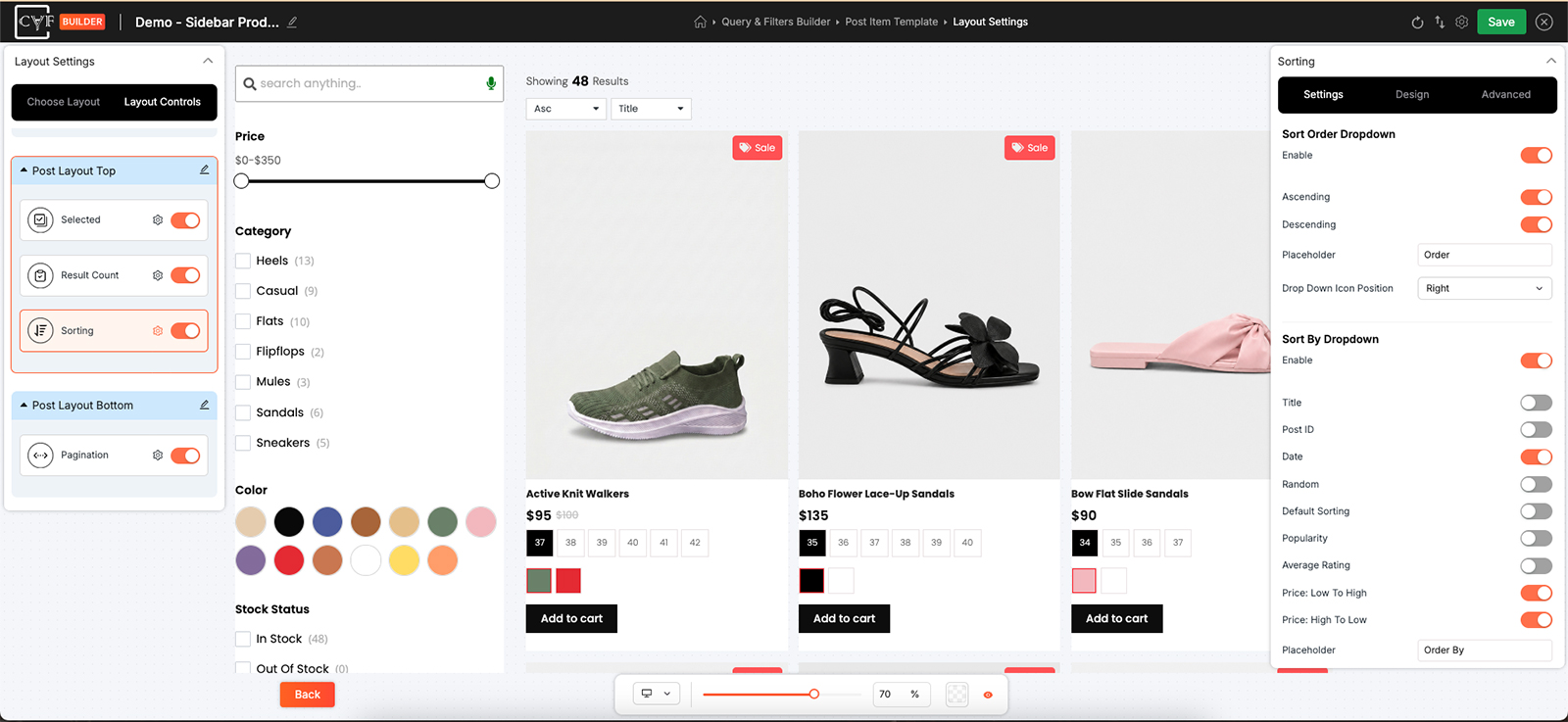
Each dropdown, and each option inside it, switches on and off.
Placeholder and icon
| Setting | What it does |
|---|---|
| Placeholder | The text the dropdown shows before a visitor has chosen anything. Set it per dropdown. |
| Drop Down Icon Position | Which side of the dropdown its icon sits on. Also per dropdown. |
The placeholder is doing more work than it looks. It's the only label the dropdown has, so it has to say what the dropdown is for - a visitor who can't tell the two apart at a glance will use neither.
Styling
The Design tab splits into three targets.
| Target | What it styles |
|---|---|
| Container | The block holding the dropdowns. |
| Select Field | The dropdown itself, as it sits closed on the page. |
| Options | The list that opens when a visitor clicks it. |
Whatever you set applies to both dropdowns at once - there's no styling one differently from the other. That keeps them looking like a matched pair, which is how they should read when they sit side by side.

Tip
Turn on the two or three criteria your visitors would actually use and leave the rest off. A long sort list is harder to choose from than a short one, and options nobody wants make the useful ones harder to find.

Note
Default Sorting, Popularity, Average Rating and the two Price options come from WooCommerce. On posts or a custom post type they have nothing to work with, so leave them switched off.
Where to put it
Above the results, usually next to the result count - put both in the same position and arrange them with that position's Layout group. See layout controls.
FAQ
Can I show only one dropdown?
Yes. Each has its own Enable switch - turn the other off.
How do I remove a sort option?
Turn its switch off in the Sort By list. Only the ones switched on reach visitors.
Can I fix the direction but still let people change what's sorted?
Yes - turn off either Ascending or Descending and leave Sort By enabled.
Can the two dropdowns look different from each other?
No. Design settings apply to both at once.
What's the difference between this and the sort settings in Layout Settings?
Those set the order results arrive in. This lets the visitor change it.
Was this page helpful?
Thanks for your feedback!