
What are layout controls?
The pieces around the results - what a visitor has chosen, how many were found, how to reorder them and how to reach the rest.
In short
Layout Controls is the second tab of the Layout Settings panel. It holds four controls that belong to the layout as a whole - Selected, Result Count, Sorting and Pagination - and four positions to put them in. Each control has its own on/off switch and its own settings; each position can hold one control or several. Where a position holds more than one, they're arranged with the same flex settings you use everywhere else in the builder.
The four controls
These aren't part of the filter and they aren't part of an item. They describe the results as a set, which is why they live here rather than in either of the earlier steps.
| Control | What it does | Plan |
|---|---|---|
| Selected | Shows what the visitor has currently chosen, so they can see and undo it. | Pro |
| Result Count | Reports how many results the current selection found. | Pro |
| Sorting | Lets the visitor reorder the results themselves. | Pro |
| Pagination | How the visitor reaches results beyond the first page. | Free |
Every one has an on/off switch, so a control you don't want simply isn't there. Each also has its own settings, opened from the control itself - a Settings tab for what it does, plus the usual Design and Advanced tabs for how it looks.
The four positions
Positions are slots on the page, two around the filter and two around the results.
| Position | Where it is |
|---|---|
| Filter Top | Above the filter. |
| Filter Bottom | Below the filter. |
| Post Layout Top | Above the results. |
| Post Layout Bottom | Below the results. |
Drop a control into whichever slot suits it. A position isn't limited to one - put the result count and the sorting dropdown in the same slot and they sit together above the results, which is the arrangement most listings use. An empty position simply shows nothing.
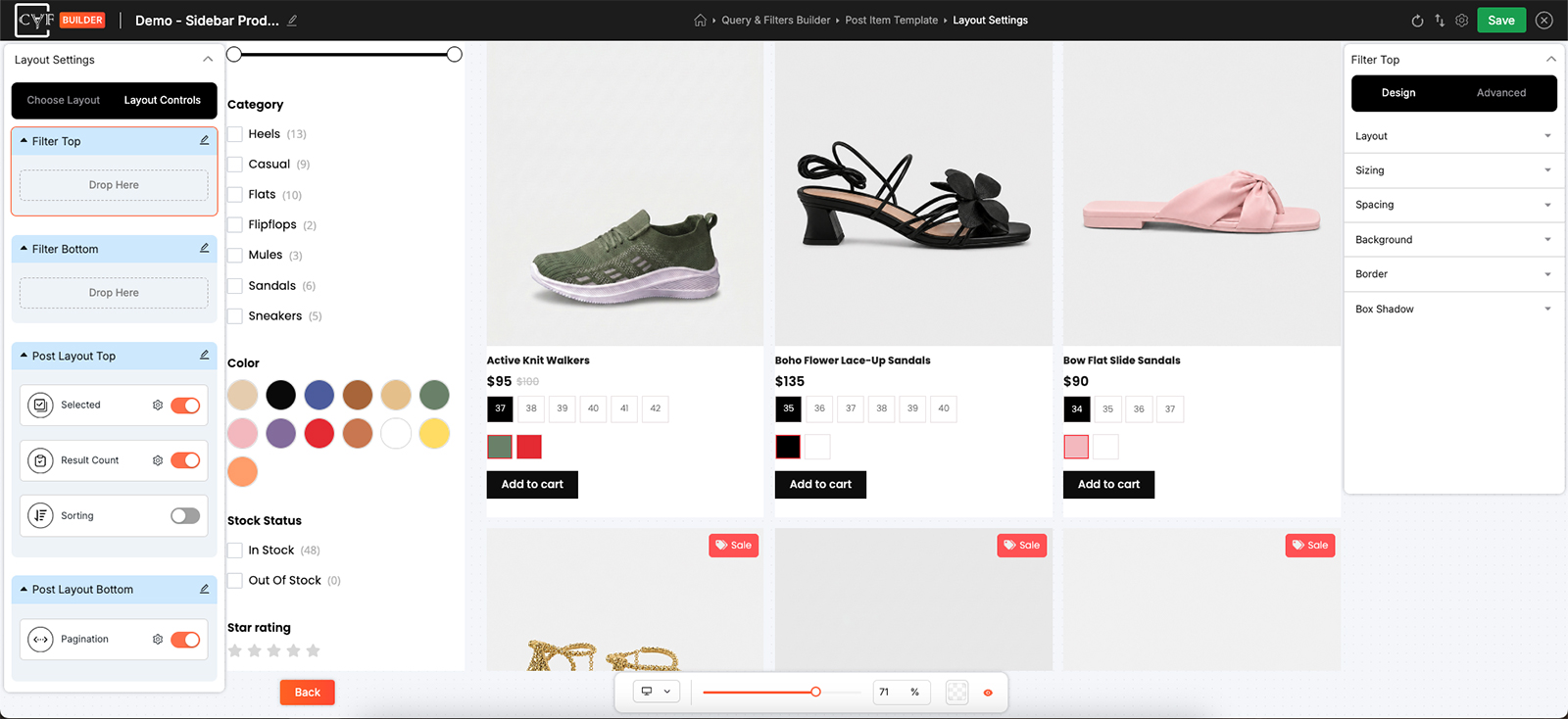
Four positions, each holding as many controls as you drop into it.
Arranging several in one position
This is the part worth knowing. A position with more than one control in it is arranged exactly like anything else in the builder: open its settings, and the Layout group gives you the same flex controls - Display, Direction, Align X and Y, Gap. So a count on the left with a sorting dropdown pushed to the right is a direction and an alignment, not a workaround.
Positions have Design and Advanced tabs but no Settings tab, because a position has no behaviour of its own - it's a container, and everything about it is how it looks and how it arranges what's inside.

Tip
Result count and sorting above the results, pagination below, is what visitors expect and it's worth a reason to depart from it. Selected is the one to think about: near the top it reassures people what they've narrowed to, and near the filter it reads as part of the filter itself.
FAQ
Where is Layout Controls?
It's the second tab of the Layout Settings panel, next to Choose Layout.
Can one position hold more than one control?
Yes. Drop in as many as you want, then arrange them with the Layout group's flex settings.
How do I put the count on the left and sorting on the right?
Put both in the same position, then use Direction and Align in that position's Layout group.
How do I hide a control?
Turn its switch off.
Why does a position have no Settings tab?
A position is a container with no behaviour of its own - only Design and Advanced apply.
Are these free?
Pagination is. Selected, Result Count and Sorting are Pro.
Was this page helpful?
Thanks for your feedback!