
Step 3 : Layout
The third step, and the first place you see the filter and the results together.
In short
Layout Settings is where the two halves you built come together - the filter on one side, the listing on the other, arranged as a visitor will meet them. On the left you pick a layout type; on the right you get the settings that type needs, plus the options that apply whatever you chose: how many results per page, the float button, the loader and the message shown when nothing matches. Design and Advanced tabs sit alongside, as everywhere else in the builder.
Everything in one place
Up to now you have been working on one half at a time: the filter in Step 1 : Query & Filters, the single result in Step 2 : Post Item. This step shows both at once - the filter your visitors use, and the listing your items fill - so you can see how they sit together rather than imagining it.
It's also where you decide where the filter goes. It doesn't have to be a sidebar: the filter and the listing sit inside one wrapper, so you can put the filter to the left of the results, to the right, above them or below - and choose differently for each device. filter & listing positions covers how.
Choosing a layout type
The panel on the left offers the layout types. Post Grid arranges your items into rows and columns, and it's the type most listings want. More types are on the way - a carousel, a timeline and others - and they'll appear here as they land.
Settings for the type you picked
The panel on the right changes with the layout type, showing only what that type needs. With Post Grid selected, that means the controls a grid has:
| Setting | What it does | Default |
|---|---|---|
| Columns | How many items sit side by side, from 1 to 5. Set per device. | 3 |
| Column Gap | The space between items across a row. | 15px |
| Row Gap | The space between one row and the next. | 15px |
| Enable Masonry | Lets items of different heights pack together instead of every row lining up to its tallest item. | Off |
The settings that always apply
Below those sit the options that belong to the listing whatever layout type you chose.
| Setting | What it does |
|---|---|
| Items Per Page | How many results appear at once. The rest wait until the visitor asks for them. |
| Sort Order and Sort By | The order results arrive in before anyone changes it. Sort By offers Title, ID, Date and Random for any post type, and Default Sorting, Popularity, Average Rating, Price: Low To High and Price: High To Low for WooCommerce products; Sort Order sets the direction. |
| No Results Message | The text shown when a visitor's selections return nothing. |
| Enable Loader | Shows an animation while results are being fetched. Switch it on and you also get the style to use and the overlay behind it; switch it off and those go away with it. |
| Float button | A floating button for reaching the filter - its own settings, covered separately. |
Each of these has more to it than the line above: see Float button settings, Pagination for how visitors reach the results beyond the first page, and Sorting dropdowns for letting them reorder the list themselves.
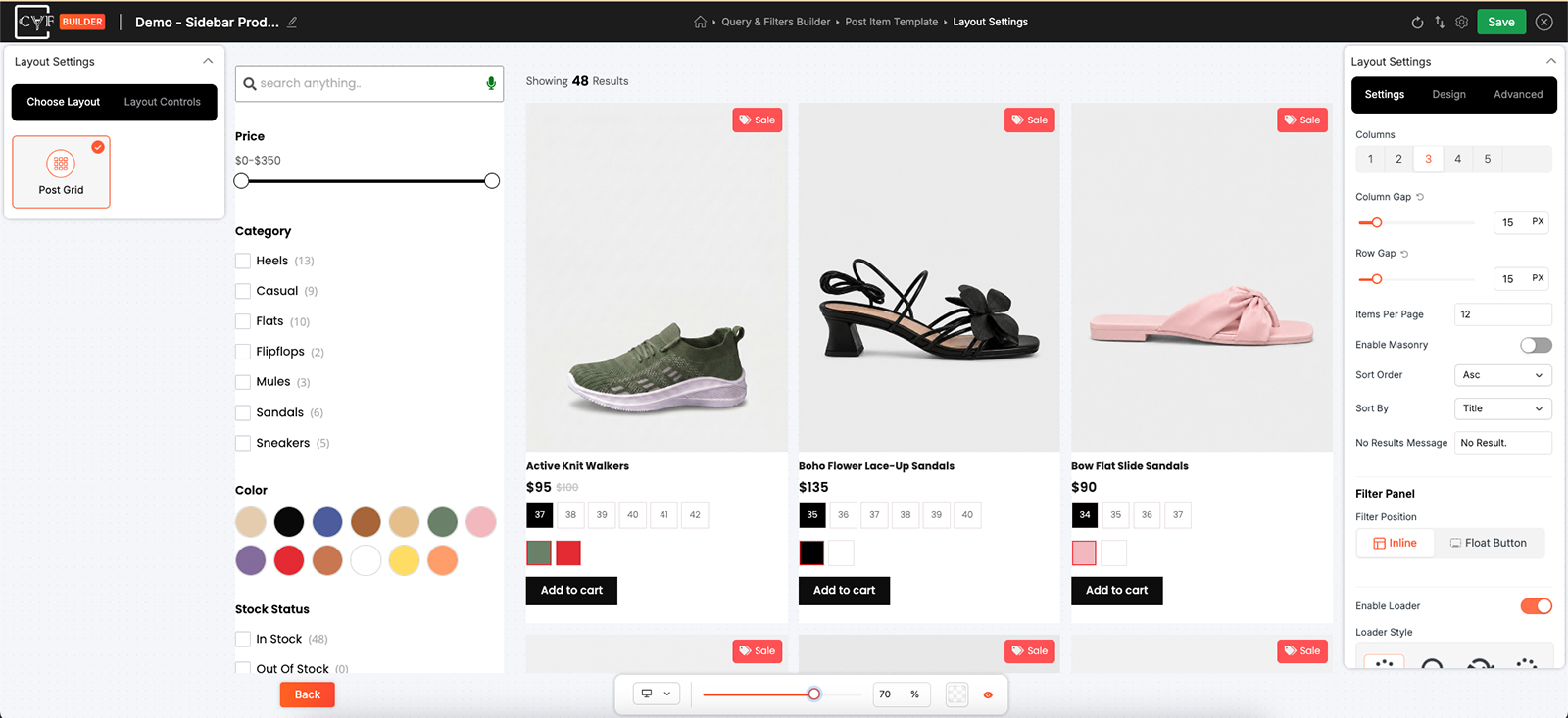
Layout type on the left, its settings on the right.
Design and Advanced
Alongside the settings are the same Design and Advanced tabs used everywhere else. Here they reach the outer wrapper, the post layout and the filter - the containers around your work rather than the items inside it. With the filter set to float, the third of those becomes the slide panel instead.
The wrapper is the one that holds both the filter and the listing, which is why its Layout group is what decides where the filter sits.

Tip
Set the columns before you go back and fine-tune the item itself. An item that looks right on its own can look cramped once three of them share a row, and this is the only screen that shows you that.

Note
This step arranges results that CAF renders itself. A filter using an existing layout doesn't use it at all, because the theme or shop is doing the arranging.
FAQ
Why do the settings on the right change?
They belong to the layout type you picked, so each type shows only the controls it needs.
Can I move the filter off the sidebar?
Yes - left, right, above the listing or below it, and differently per device. See Control positions.
How many columns can I have?
Between one and five, and a different number for each device.
Where do I set how many results show at once?
Items Per Page.
I turned the loader off and the overlay setting vanished - is that a bug?
No. The overlay belongs to the loader, so it only appears while the loader is on.
Can visitors change the order themselves?
Yes, with the sorting control - a Pro feature. Sort By here is the starting point.
What do the Design and Advanced tabs style here?
The outer wrapper, the post layout and the filter - or the slide panel, if the filter is set to float.
Was this page helpful?
Thanks for your feedback!