
How to build a query
Setting the conditions that decide which posts a filter returns.
In short
Flip the toggle to Query Only and the Build Your Query screen takes over. It is also the mode to reach for when you only want a listing - a grid of posts or products, with no filter for visitors to touch. Build your conditions from taxonomies and their terms - and, with Pro, from custom fields as well. Each condition you add is joined to the ones before it with AND or OR: AND means a post has to match every condition, OR means matching one is enough. Set no conditions at all and the filter returns everything from the post type you chose.
Opening the screen
In Step 1 : Query & Filters, set the toggle to Query Only. The screen is headed Build Your Query, with the conditions in a panel on the right.
Filter By
Two checkboxes sit at the top of the panel: Taxonomy and Custom Field. They decide which condition sections you get. Tick Taxonomy and the Taxonomy section appears; tick Custom Field and the Select Custom Field section appears. Untick one and its section goes away. Tick both to build conditions of both kinds.
Choosing a taxonomy and its terms
Add a taxonomy and it opens with all its terms listed, each showing how many posts carry it - Flats (10) means ten posts are in that term. Tick the terms this condition should match, and the taxonomy name shows a running count of your choices. Advanced Options holds further settings for that taxonomy, and a condition you no longer want can be removed.
AND and OR
Conditions are joined by one of two operators, and choosing between them is the most consequential decision on this screen. It comes down to a single question: must a post satisfy every condition, or is satisfying one of them enough?
| Operator | What a post has to do | Example |
|---|---|---|
| AND | Match every condition joined by it. | Tagged Interviews and in Design - only posts carrying both. On a shop: in Flipflops and in Blue, so only blue flipflops. |
| OR | Match at least one of them. | Tagged Interviews or in Design - every interview, plus everything in Design. On a shop: every flipflop, plus every blue product. |
You choose the operator when you add the condition: the screen offers an Add Taxonomy under AND and another under OR, and whichever you use sets how that condition joins the ones above it.
Nothing is off limits. Conditions can be combined with either operator, in whatever mix the query needs - a category with a tag, a tag with a second tag, or on a WooCommerce site a product category with a colour attribute.
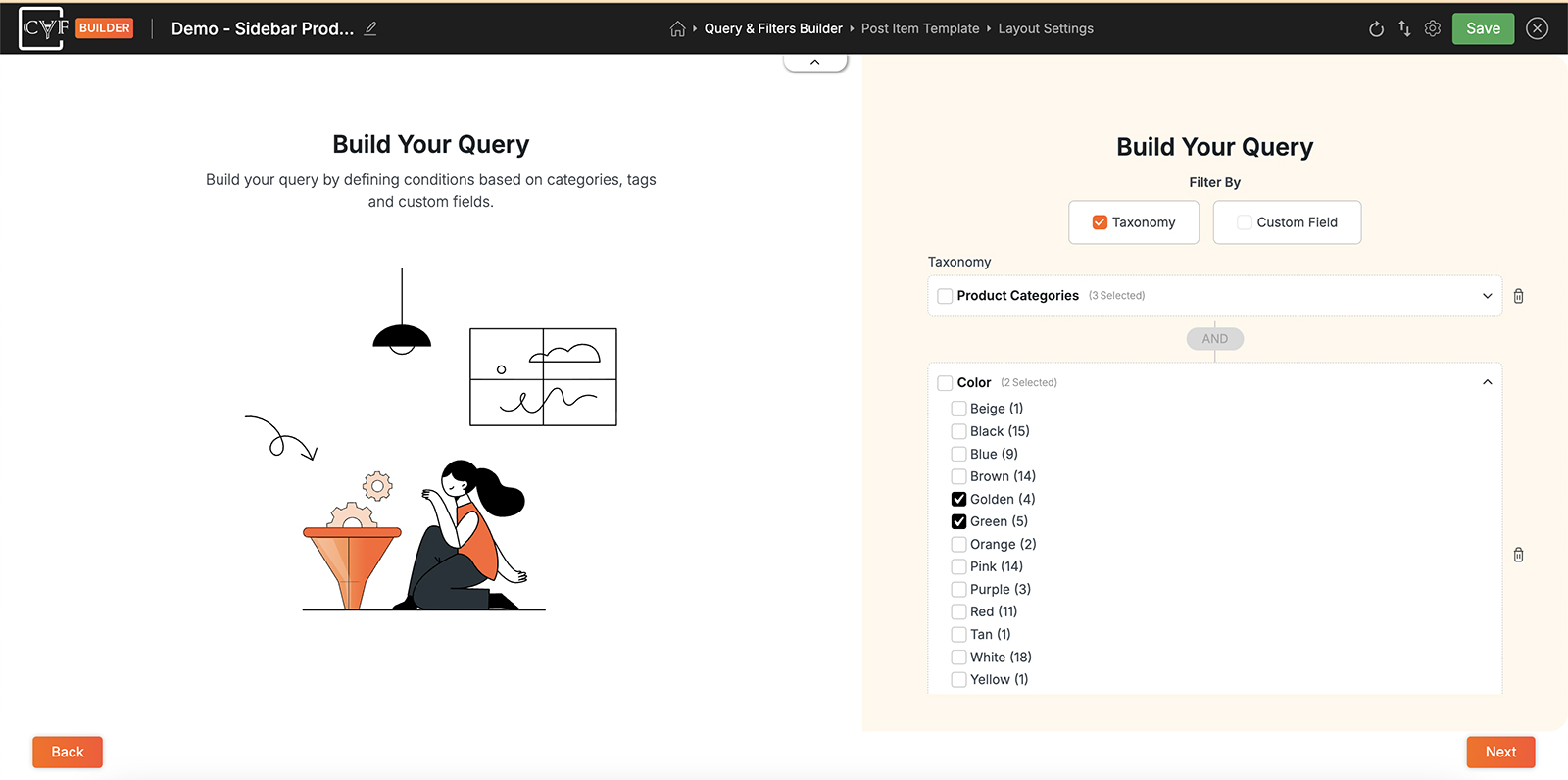
A post matching either condition qualifies.

Tip
Say the query out loud before you build it. “Interviews about design” is one set and needs AND; “interviews and anything about design” is two sets and needs OR. The same test works on a shop - “blue flipflops” against “flipflops and anything blue”. Getting that sentence right first saves rebuilding the conditions afterwards.
Custom field conditions
Query by custom fields
With CAF Pro, tick Custom Field in Filter By and you can build conditions on the data behind your posts rather than only the terms filed against them - a price, a date, a rating, or any field your theme or ACF has added. Everything else on this page works the same way for them.
A custom field condition is a field, a comparison and one or more values. Until you choose a field the comparison dropdown stays greyed out, and once the condition is complete its header reads back as a sentence - event_date Is Equal To.
| Control | What it does |
|---|---|
| Select Field | The custom field the condition looks at, listed by its meta key - event_date on a post type of your own, or _price on a WooCommerce product. |
| Comparison dropdown | How the field's value is matched against the value you supply. Available once a field is chosen. |
| Advanced Options | An expandable set of further options for the condition. |
| Add Value | Type a value and click Add. A condition can hold more than one value. |

Warning
An unfinished condition wears a yellow badge in its header telling you what's missing - Select Custom Field when no field has been picked, Add Values when a field and comparison are set but no value is. It's a reminder rather than an error, so nothing stops you publishing with one sitting there.
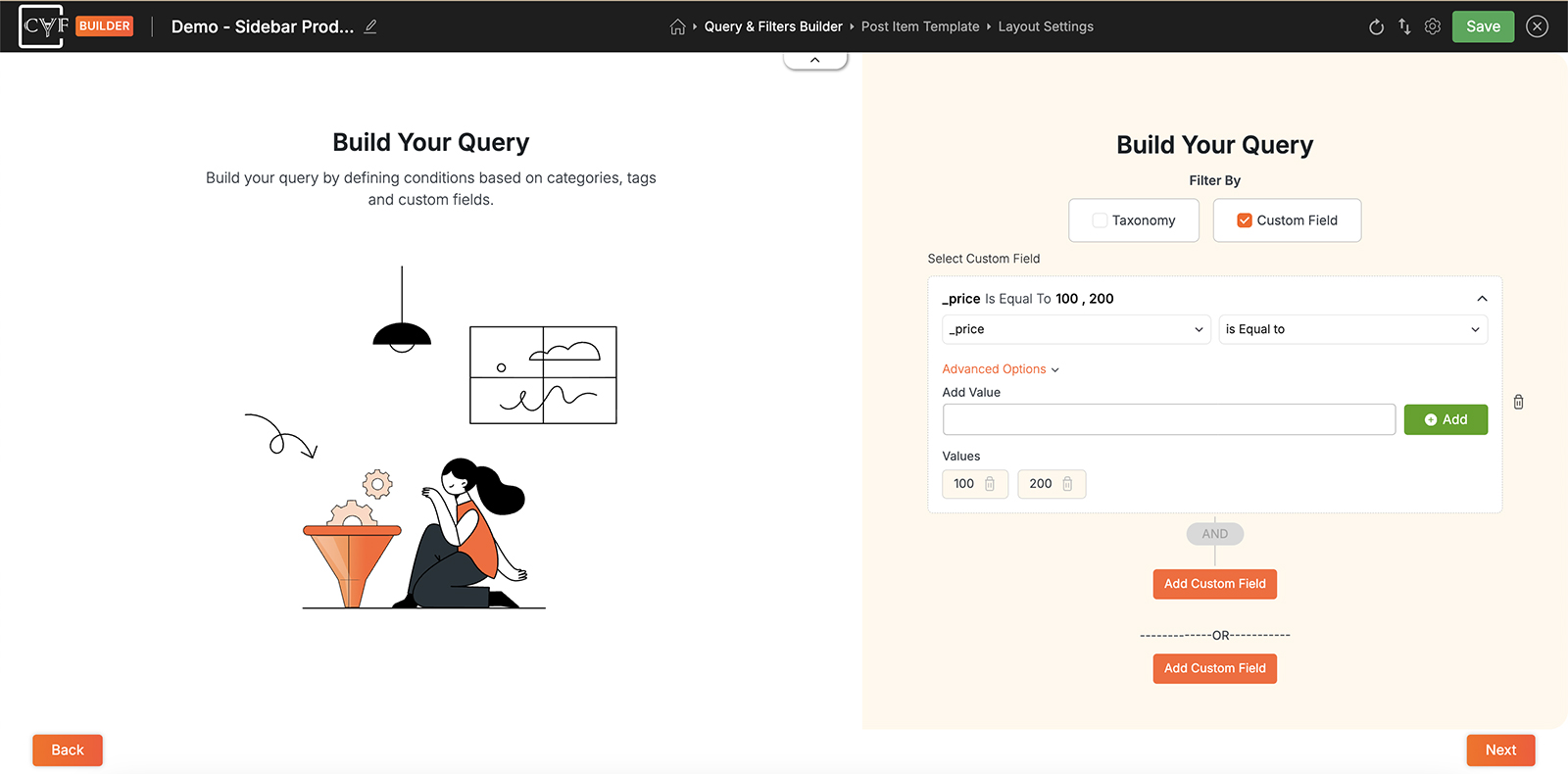
Filter By at the top, then the two condition sections.
Moving on
Back and Next at the bottom of the screen move between the builder's steps, the same three the breadcrumb lists. Saving is still the one button at the top right - see The 3-step flow.
Tip
Build the query one condition at a time and check the result as you go. A query that returns nothing is almost always two conditions in the same AND group that no single post can satisfy - two categories nothing is filed under, or a colour and a size that never occur together.
FAQ
Where is the Build Your Query screen?
In Query & Filters Builder, with the toggle set to Query Only.
Can I query by custom fields on the free version?
No - custom field conditions are Pro. Taxonomy conditions are free, and they cover most queries built on categories, tags and attributes.
How do I make two conditions match either one, not both?
Add the second one with OR rather than AND.
I want things that are in two categories at once - which operator?
AND. A post then has to satisfy both conditions, so only the ones carrying both come back - a post in two categories, or a product in a category and a colour.
What's the yellow Add Values badge?
That condition has a field and a comparison but no value yet. Add one in the Add Value box and click Add.
Can a condition have more than one value?
Yes - add them one at a time with the Add button.
What if I set no conditions?
The filter returns everything from the post type you selected.
Can I use more than one taxonomy in a query?
Yes, and with either operator - a category with a tag, an attribute with a category, or several of each.
Was this page helpful?
Thanks for your feedback!