
How to import & export layouts
Exporting saves a design as a file you can import into another filter or another site - the way to reuse work beyond the filter you built it in.
In short
Open the import/export icon in the top bar. Export downloads a JSON file of whichever part you choose; Import brings one back in with Choose File. Both tabs cover the same four scopes - the whole layout, the filter on its own, the post item on its own, or the layout settings.
Exporting a design
Open the import/export icon in the top bar and go to the Export tab. Choose Full Layout, Filter Layout, Post Layout or Layout Settings, then click Export JSON - the file downloads to your computer.
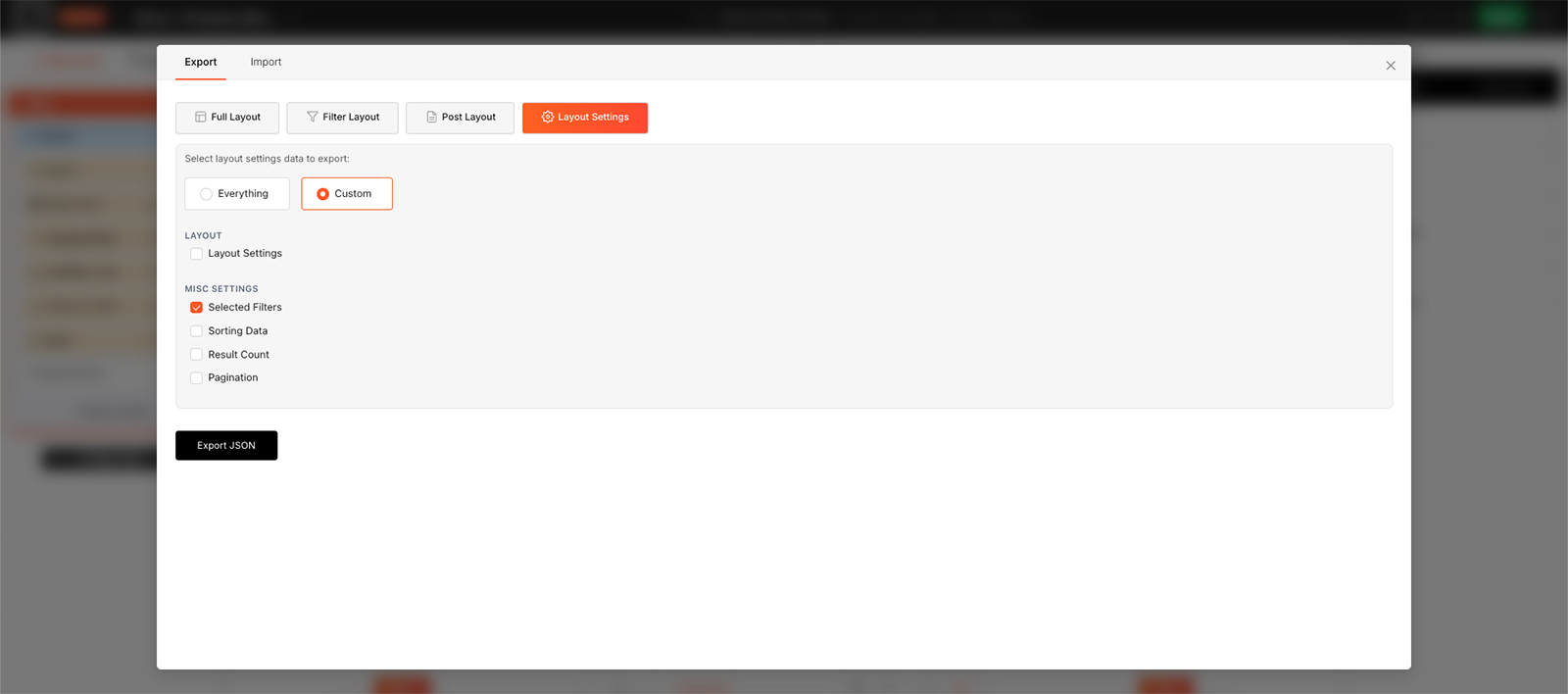
Export the whole layout, or just one part of it.
Importing a design
On the Import tab, click Choose File and select a JSON file you exported earlier. The same four scopes appear here, listed down the left as Full Filter Layout, Filter, Single Post Item and Layout Settings. Import From Library, beside Choose File, brings in a ready-made design instead of one of your own - see Template library.

Warning
Import a file into the same section you exported it from. Full Layout goes into Full Filter Layout, Filter Layout goes into Filter, Post Layout goes into Single Post Item, and Layout Settings goes into Layout Settings.
Warning
Filter modules need their source setting up again after an import. When a Checkbox Filter, Dropdown Filter or Range Slider arrives in a different filter or on a different site, select its source again and re-apply anything attached to individual terms - icons, colours and images. Every other setting and all of the styling comes across unchanged; it's only the term data that has to be redone. See Modules.

Note
This is how a design moves between sites. Revisions only cover the filter you're in, so exporting is what you want when the destination is a different filter or a different WordPress install.

Tip
Exporting before a big change gives you a copy on disk that isn't affected by the rolling revision limit.
Moving a single element instead
This dialog deals in whole steps - the filter, the post item, the layout settings, or all of it together. To move one part of a build instead, export that element from its own Advanced tab and import it from the + New Module, + New Column or + New Row menu. A container takes its contents with it, so exporting a row is enough to carry a whole filter across - see Import & export elements.
FAQ
What file do I get when I export?
A JSON file, downloaded to your computer.
Can I export just part of a filter?
Yes - pick Filter, Single Post Item or Layout Settings instead of Full Filter Layout.
Can I move a design to another site?
Yes - export the JSON file, then import it on the other site. Filter modules will need their source and term data set up again.
How do I move just one row or module?
Not from here - export it from its own Advanced tab and import it from the + New Module menu. A row brings its columns and modules with it.
Was this page helpful?
Thanks for your feedback!