
How to duplicate & copy modules
Duplicating gives you an identical module - settings and styling included - instead of configuring a second one from scratch.
In short
Click the duplicate icon beside a module in the Elements tree and a copy appears in the same column, carrying all of its settings and styling. Duplicating works within one filter; to reuse a module in a different filter or on another site, export it and import it there.
Duplicating a module
Each module in the Elements tree shows three icons: duplicate, edit and delete. Click duplicate and an identical copy appears in the same column, with every Settings, Design and Advanced value carried over. Drag it wherever you need it. Rows and columns carry the same duplicate icon.
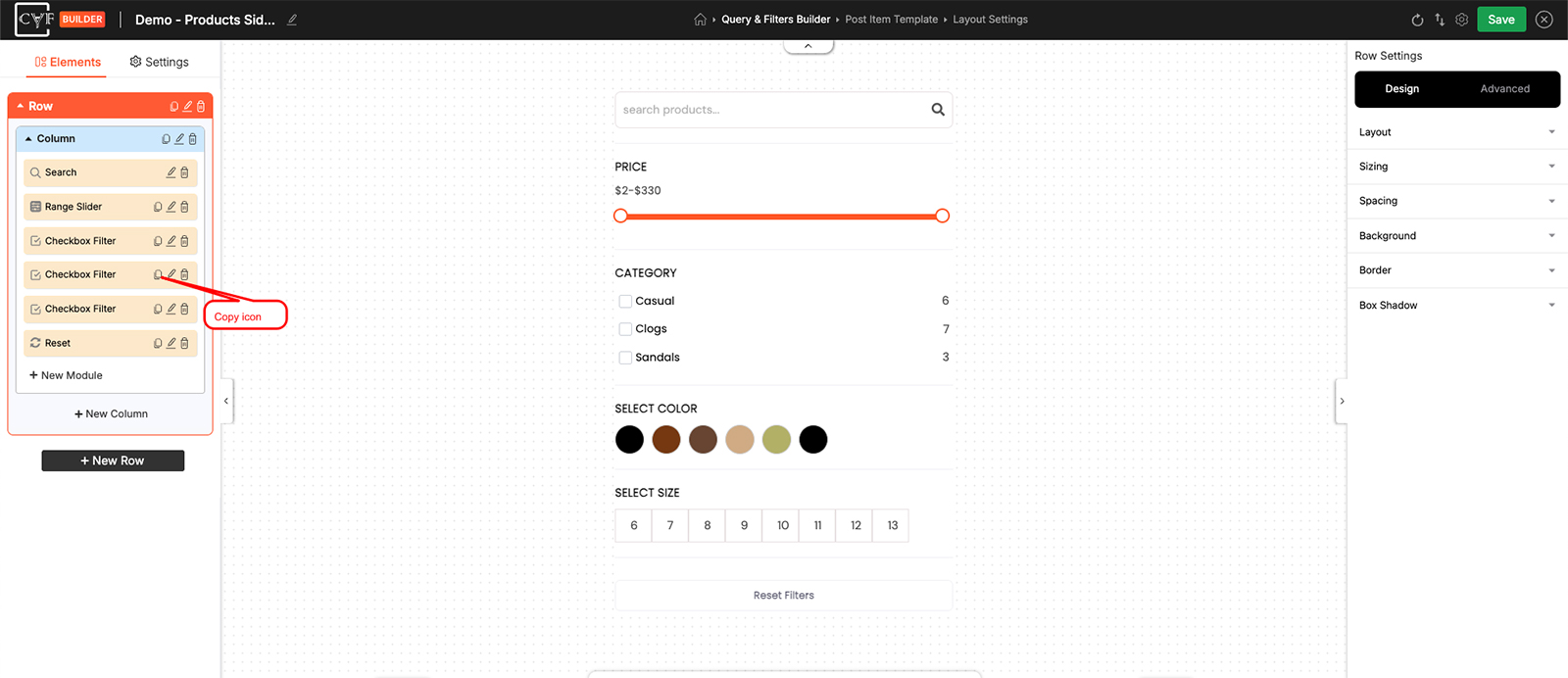
Duplicate sits alongside edit and delete.

Note
The Search module has no duplicate icon, because a filter can only have one search box.
Reusing a module elsewhere
Duplicating stays within the filter you're in. To use a module in a different filter, or on another site, export that single module and import it where you need it - see Export module and Import & export elements.
FAQ
Does duplicating keep my styling?
Yes - the copy carries every Settings, Design and Advanced value.
Why can't I duplicate the Search module?
A filter can only have one search box, so there's nothing to duplicate.
How do I use a module in another filter?
Export the module, then import it into the other filter - duplicating only works within one filter.
Was this page helpful?
Thanks for your feedback!