
How to filter an existing layout
If your theme already displays your products or posts the way you want, you can leave that layout exactly as it is and use CAF for the filtering alone.
In short
On the Home screen, the Post Item Design card offers two options: CAF Builder and Existing layout. Choose Existing layout and CAF renders only the filter bar while your theme or page builder keeps handling the product grid - so you build your filters in step 1 and steps 2 and 3 don't apply at all. CAF finds your grid automatically in most cases, and where it can't, you point it there with a CSS selector.
When to use it
If you already have a shop page or archive looking the way you want it, there's no reason to rebuild it. With Existing layout, CAF renders only the filter bar and your theme or page builder carries on handling the product grid - your products keep their styling, and visitors gain a filter.
Choose CAF Builder instead when you want CAF to render the results too, so you control each item and the grid it sits in.
Choosing Existing layout
-
Open Build Your Layout
Click the house icon in the builder's breadcrumb, or choose Home from the Navigation column on the All Filters screen. See Navigation.
-
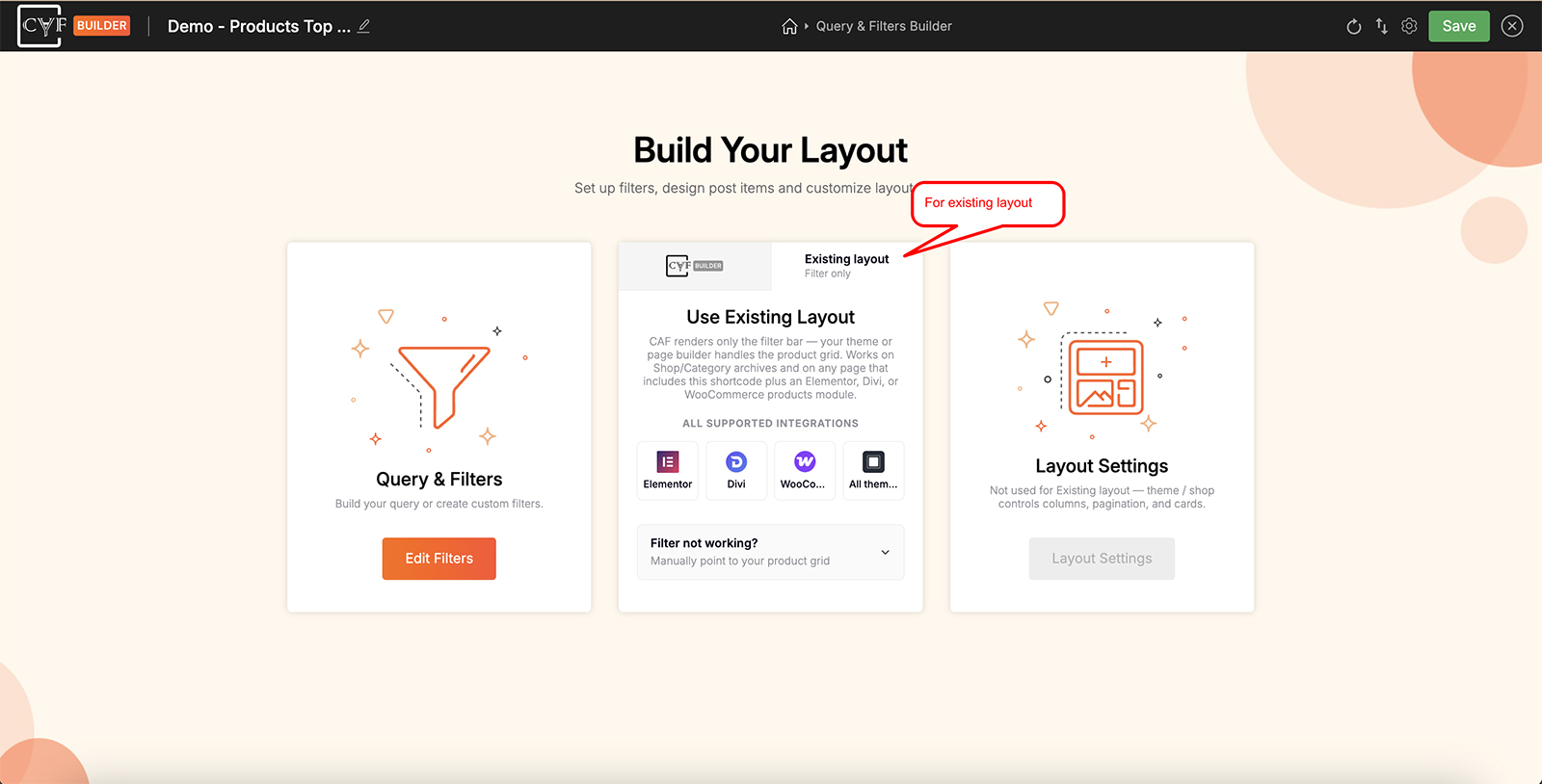
Switch the Post Item Design card to Existing layout
The Post Item Design card has two options along its top - CAF Builder and Existing layout. Choose Existing layout.
-
Build your filters in step 1
Go to Query & Filters Builder and set up the filters your visitors will use. This is the only step that applies here - see The 3-step flow.
-
Put the filter where your results are
This works in two places: on Shop and Category archives, and on any page that includes the filter's shortcode alongside an Elementor, Divi or WooCommerce products module. Either way CAF filters the grid that's already there - see Placing the shortcode.

Note
You'll see this choice reflected in the builder itself: the breadcrumb drops to Query & Filters Builder alone, and the Layout Settings card is greyed out with a note that it isn't used for Existing layout. Both steps describe results that CAF renders itself, so with your theme doing the rendering there's nothing for them to control - columns, pagination and the cards themselves all come from your theme or shop.
If your grid isn't detected
CAF detects your product grid on its own, and the default works for WooCommerce, Divi, Elementor and most themes. If a filter doesn't seem to do anything, it's usually because auto-detection couldn't find the grid on that page - and you can point CAF at it yourself.
On the Use Existing Layout card, open “Filter not working?” and enter a CSS selector for the element that wraps your results in the Results selector field. For a standard WooCommerce product list, for example:
ul.products
Leave the field empty to keep using auto-detection - it's only needed when auto-detect fails.

Tip
To find the right selector, open the page in your browser, right-click one of the products and choose Inspect. The element that contains all of the products - not an individual one - is what you want.
Switching back to CAF Builder
Nothing is locked in by this choice. Go back to Build Your Layout and switch the Post Item Design card from Existing layout to CAF Builder, and steps 2 and 3 become available again.
FAQ
How does CAF know which results to filter?
You place the filter's shortcode on the page that already displays them, and CAF filters the results that are there.
Do I still design a post item?
No - your theme renders each result, so step 2 doesn't apply.
Do Layout Settings still apply?
No - columns, posts per page and ordering all come from your theme's layout.
My filter isn't doing anything - what now?
Auto-detection probably couldn't find your product grid. Open “Filter not working?” on the Use Existing Layout card and enter a CSS selector for the element wrapping your results.
Do I have to set a Results selector?
No - it's optional, and only needed when auto-detect fails. The default works for WooCommerce, Divi, Elementor and most themes.
Which page builders does this work with?
Elementor, Divi and WooCommerce products modules are listed as supported integrations, and it also works on Shop and Category archives.
Can I switch back to building my own layout?
Yes - go to Build Your Layout and switch the Post Item Design card back to CAF Builder.
Is this only for WooCommerce?
No. It works with any archive or listing your theme already renders, including posts and custom post types. WooCommerce shop and product archives are just the most common case.
Was this page helpful?
Thanks for your feedback!