
The 3-step builder flow
CAF Builder walks you through three steps - what gets filtered, what each result looks like, and how the two come together on the page. You can move between them freely at any time.
In short
The builder has three steps. Step 1 : Query & Filters is where you either build a query - setting the conditions on terms and custom fields yourself - or build the visual filters your visitors use, like search, checkboxes, dropdowns and a range slider. Step 2 : Post Item is where you design the single loop item that repeats for every result. Step 3 : Layout brings the two together and controls how the results are arranged. You can jump between steps in any order, and one button at the top right saves the whole filter: it reads Publish until the filter has been published, then Save.
The three steps
When you choose With Builder while creating your first filter, the builder opens on step 1. Each step answers a different question, and together they make up the whole filter.
-
Step 1 : Query & Filters
Step 1 decides what gets filtered, and it works two ways. A toggle at the top switches between Query Only and Design Filters. With Query Only you set the conditions yourself (which terms, and with Pro, which custom fields, the results have to match), so the selection is fixed and there is nothing for visitors to click. With Design Filters you build the panel visitors actually use, assembling it from modules like Search, Checkbox Filter, Dropdown Filter and Range Slider.
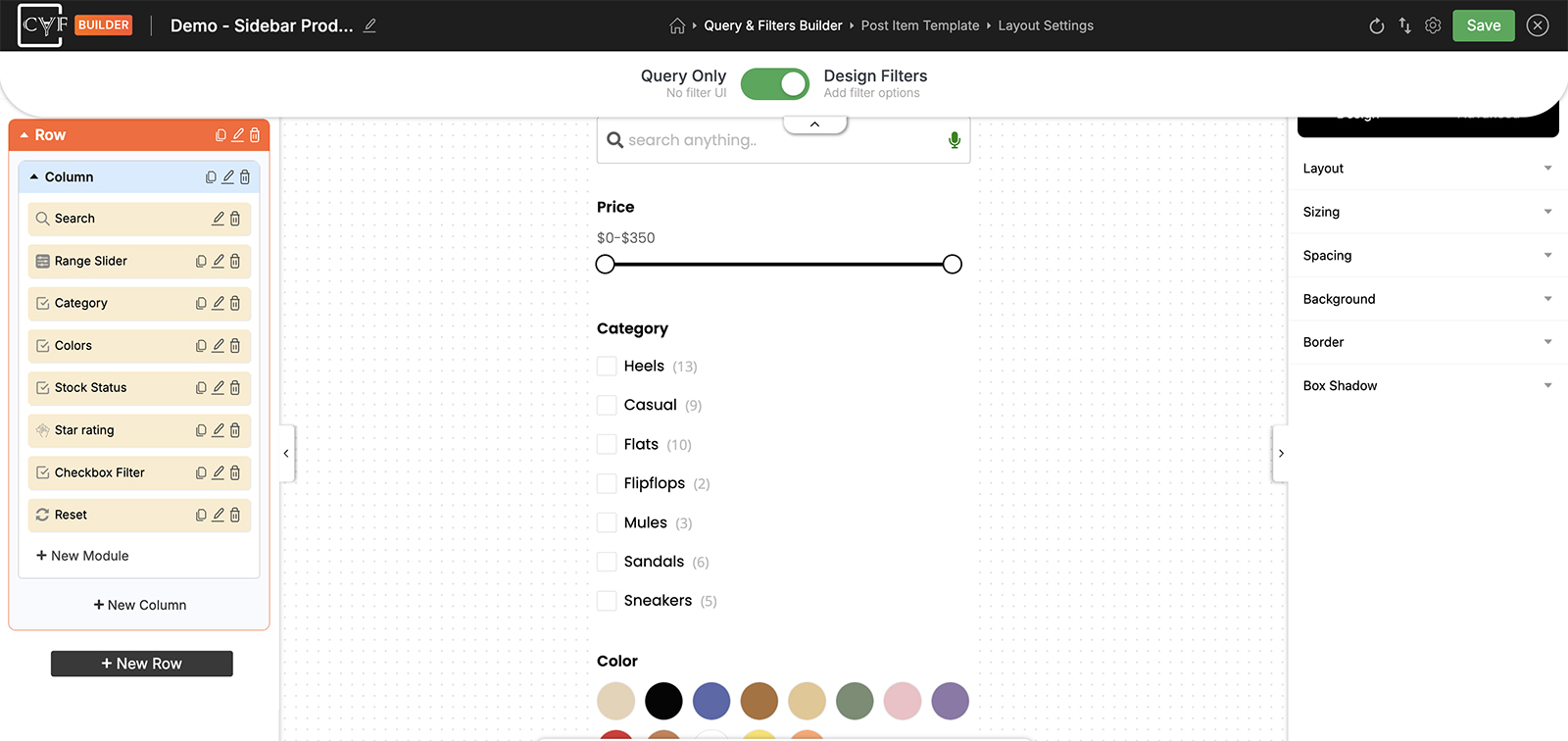
-
Step 2 : Post Item
Step 2 is where you design the loop item - the single result that repeats for every post. You build it from modules: image, title and description for posts, and for WooCommerce products things like price and Add to Cart. Design it once, and every result on the frontend follows it.
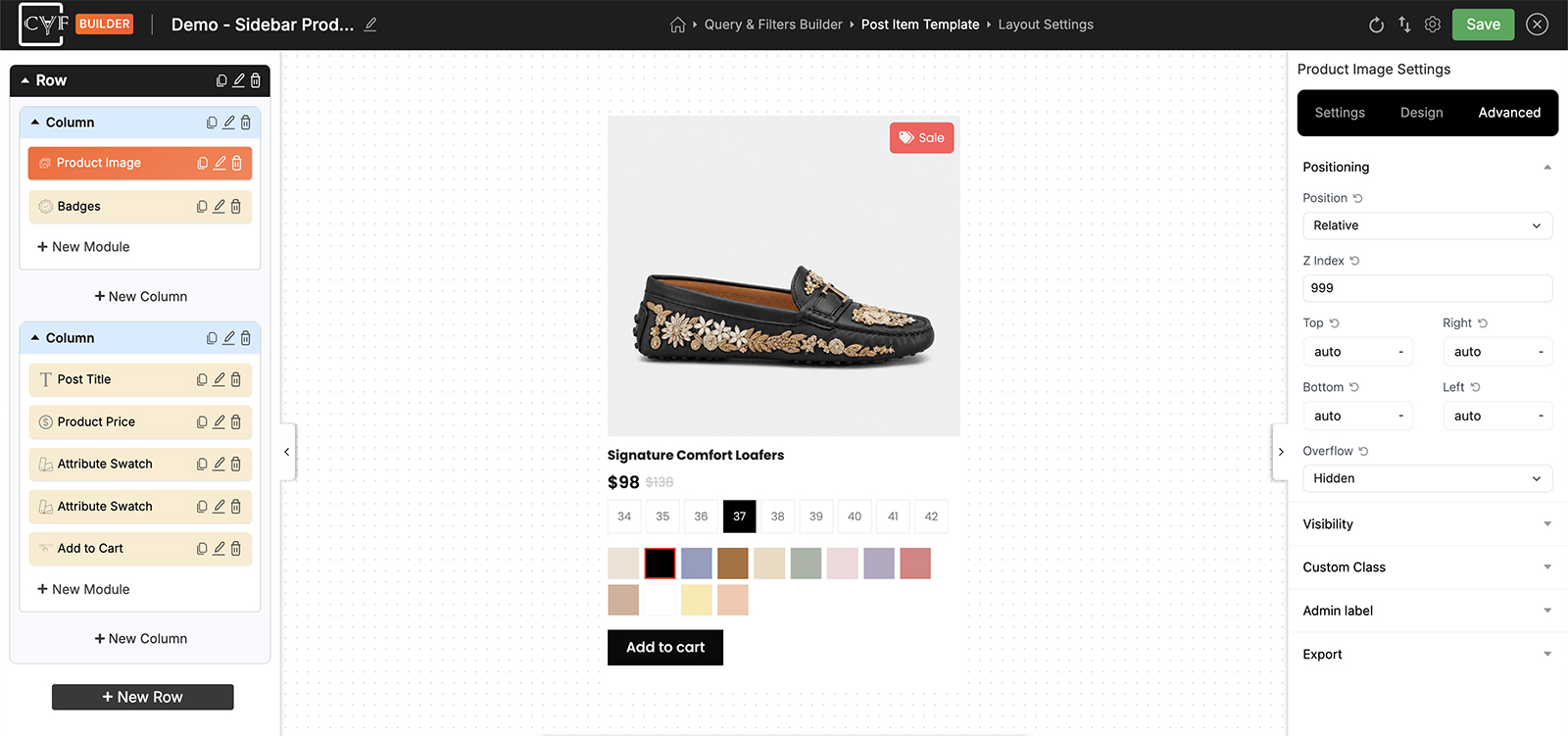
-
Step 3 : Layout
Step 3 is where the first two steps come together into one working layout, across two tabs. The Choose Layout tab covers the grid itself: posts per page, columns and gap, default order and loaders. The Layout Controls tab covers what sits around the grid, such as pagination, result count, sorting and active filters.
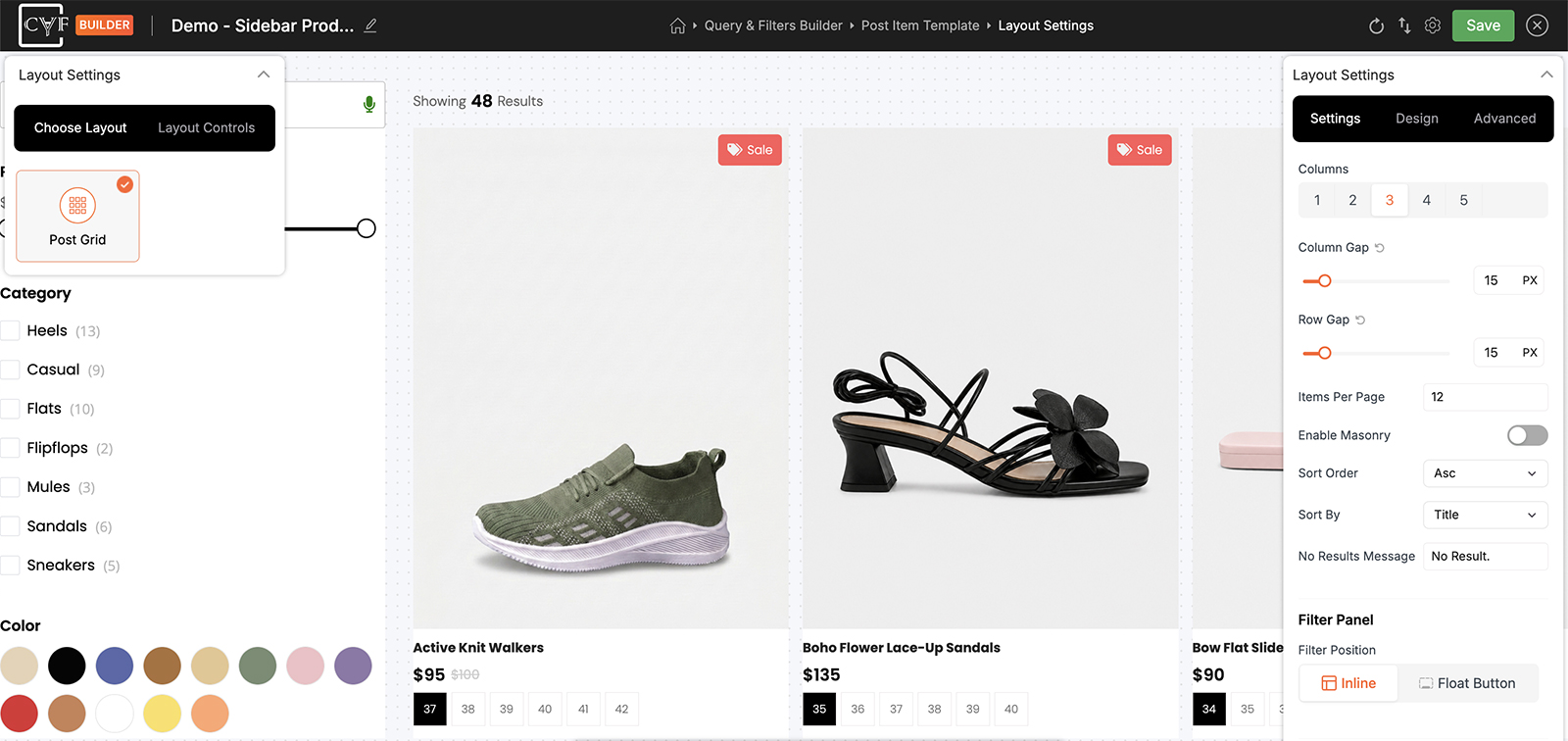

Note
Query Only and Design Filters are two ways of deciding what appears, not two levels of the same thing. With Query Only you fix the selection yourself using terms and custom fields. With Design Filters your visitors narrow it themselves, using the filter modules you have added.
Moving between steps
The steps are numbered, but they aren't locked. You can jump to any step at any time and come back - there's nothing to finish before the next one opens. Navigation covers how to move around the builder in detail.
Saving your work
There's one save button at the top right, and it saves the whole filter - all three steps together.It reads Publish on a filter that hasn't been published yet, and Save after that. You don't need to save each step before moving to the next.

Tip
The bottom bar of the canvas isn't part of any step - it stays with you on every screen, with preview, responsive device switching and zoom. See Bottom bar.
When only step 1 applies
If you connect CAF to a layout you already have - a WooCommerce shop or product archive, typically - that layout renders the results itself. There's no post item for you to design and no grid for you to arrange, so steps 2 and 3 both drop away and you use step 1 on its own. See filter an existing layout.
FAQ
Do I have to complete the steps in order?
No - you can move between them freely at any time, in any order.
Do I need to save each step separately?
No. The one button at the top right saves the whole filter. It reads Publish before the filter has been published, and Save after.
What's the difference between Query Only and Design Filters?
With Query Only you set the conditions yourself - terms and custom fields - and the selection is fixed. With Design Filters you build the panel visitors use to narrow the results themselves, from modules like search, checkboxes, dropdowns and a range slider.
Does every filter use all three steps?
No - if you connect to an existing layout your theme renders the results, so only step 1 applies.
Was this page helpful?
Thanks for your feedback!