
Product image & gallery module
One product photo, or several that cycle as the cursor passes over them.
In short
This module shows a product's picture in the listing. The featured image is free. With Pro you can point it at the product gallery instead and show several - with a limit on how many, and an option to cycle through them while a visitor hovers. Paired with attribute swatches it goes further, changing the picture as a shopper clicks between variations. A placeholder covers products with no image, and the whole thing can be a link.

Note
This module reads WooCommerce product images, so it applies when you're filtering products. For posts and custom post types, use the Post Image module instead.
Featured image or gallery
| Image Source | What it shows | Plan |
|---|---|---|
| Featured Image | The product's main image, on its own. One picture per result. | ✓ FREE |
| Gallery Images | The product's gallery, so several pictures are available in the same space. | ★ PRO |
A second look, without leaving the listing
The free version shows one photo per product. With CAF Pro the module reads the product gallery instead, so a shopper gets the back of the shoe, the other colourway, or the thing photographed on a person - cycling as the cursor passes over it, with a limit you set so a product with twelve photos behaves like one with two. A shopper deciding between products usually wants a second look, and every time they have to open a product page to get it, that is a chance to leave the listing and not come back.
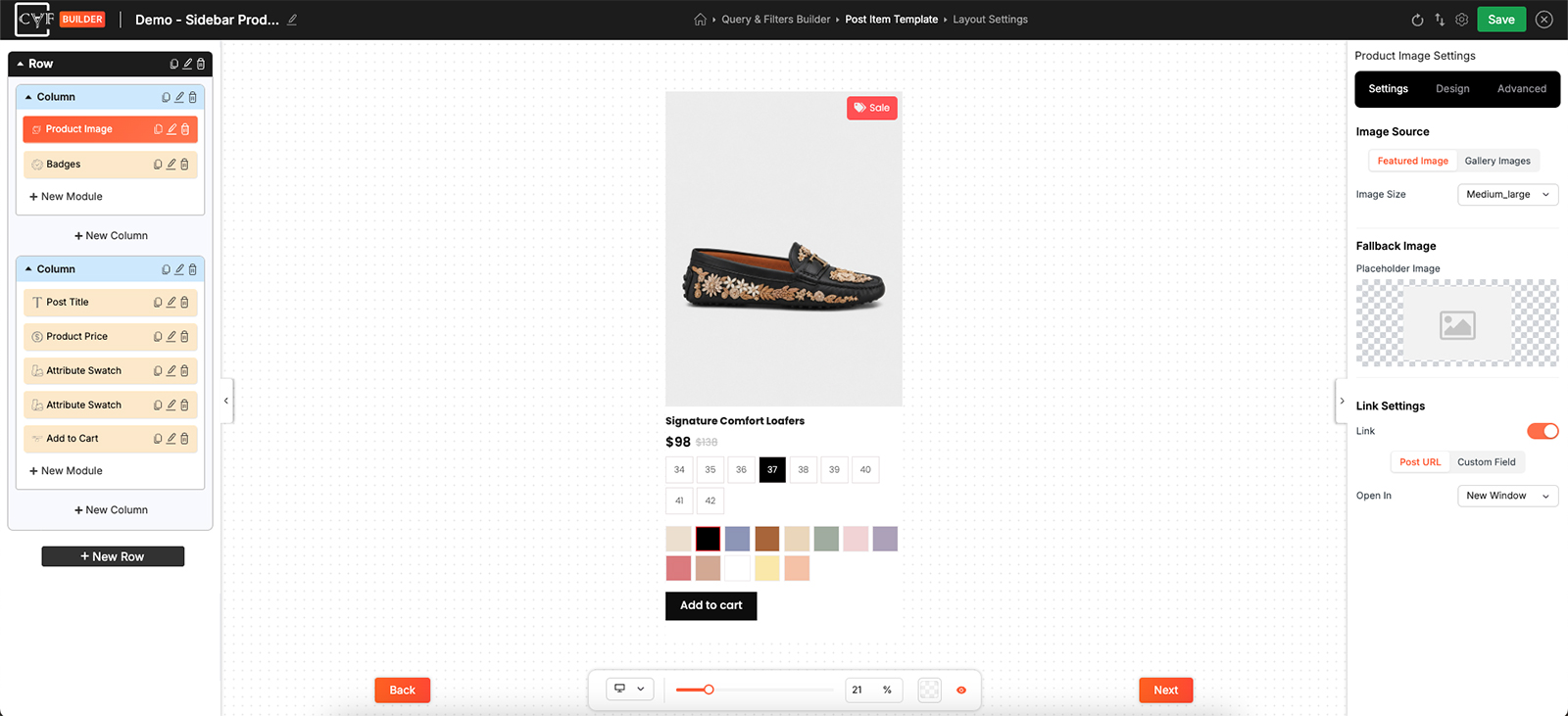
Featured image alone, or the product's gallery.
The gallery settings
With Gallery Images selected, three more settings appear.
| Setting | What it does | Default |
|---|---|---|
| Gallery Image Limit | How many of the product's gallery images to use. | 2 |
| Auto Scroll On Hover | Cycles through those images while the cursor is over them. | On |
| Auto Scroll Delay (Ms) | How long each image is shown before the next, in milliseconds. | 1000 |
The limit matters because products don't have matching galleries. One has twelve photos, another has two, and a low limit keeps the behaviour consistent across the listing rather than making some items far livelier than others.
The delay is worth testing rather than accepting. Too fast and the images flicker past before anyone can take them in; too slow and a visitor moves on before the second one arrives. Around a second is a sensible starting point, which is what it's set to.

Tip
Auto scroll on hover does nothing on a touchscreen, where there's no cursor to hover. It's a desktop enhancement rather than the way people see your second image - so make sure the first one carries the product on its own.
Working with attribute swatches
This module also responds to the Attribute Swatches module. Where both sit in the same item, clicking a swatch changes the picture to the one belonging to that variation - so a shopper can see the blue version without opening the product.
It's the pairing that turns a listing into something browsable. Colour swatches on their own tell a shopper what exists; swatches that change the photo let them judge it, which is the part that usually needs a click through to the product page.
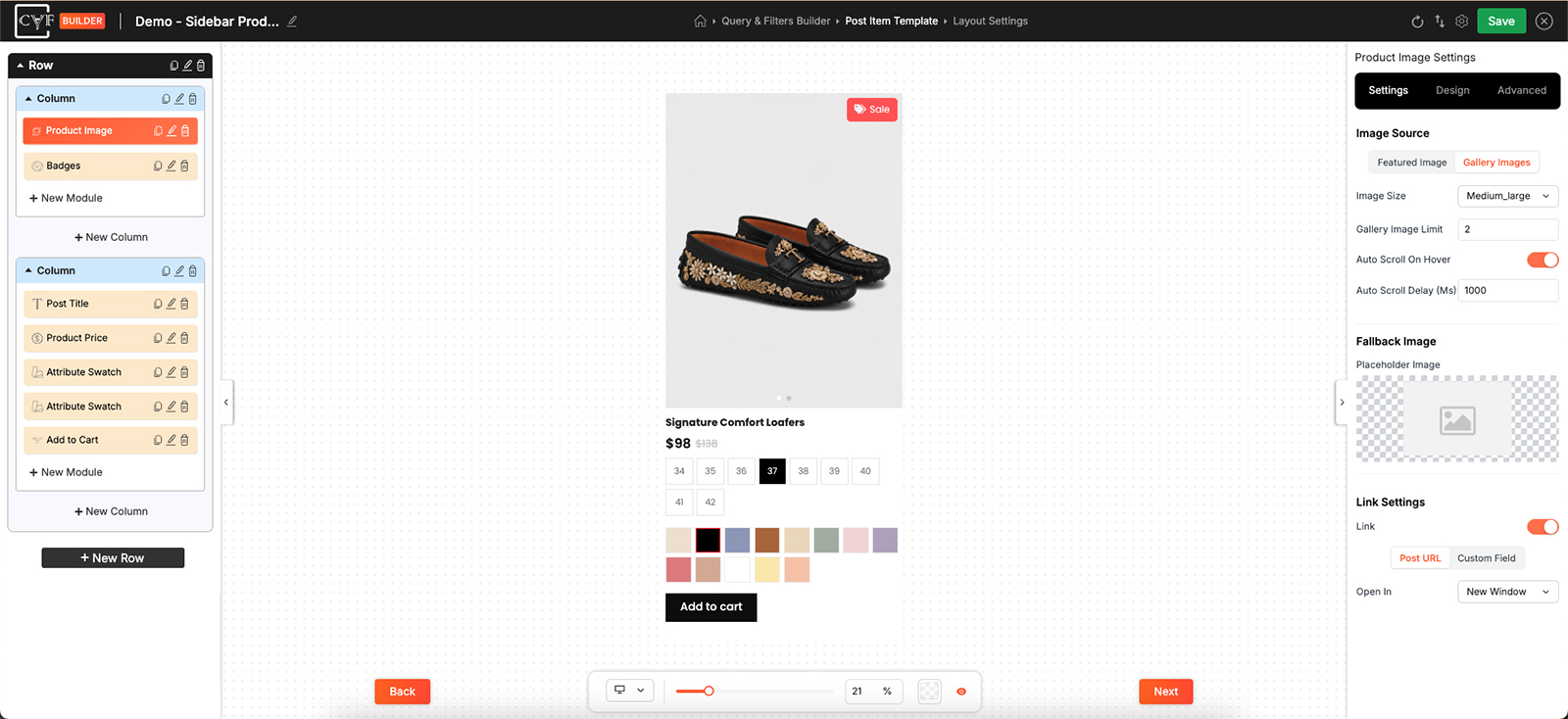
Clicking a swatch swaps the picture to that variation.
Image Size
Which registered size of each image loads. It's worth setting deliberately: a listing several products across doesn't need the full-size upload, and with a gallery the module may be loading several images per item rather than one - so the saving multiplies.
Fallback Image
Placeholder Image is what shows when a product has no picture of its own. A grid with holes in it looks broken rather than sparse, and a plain placeholder keeps every item the same shape.
Link Settings
Switch Link on and the image becomes clickable, taking the visitor to the product. People click pictures whether or not you've made them clickable, so this usually saves a wasted click.
Styling
How the image sits in the item comes from the Design tab, with the usual groups - Layout, Sizing, Spacing, Background, Border and Box Shadow
Sizing does the important work. Product photos arrive at whatever shape they were shot at, and a grid where each image sets its own height looks untidy - giving the module a fixed footprint puts every product on the same footing.
FAQ
Does this work without WooCommerce?
No. It reads product images - use the Post Image module for posts and custom post types.
How do I show more than one photo per product?
Set Image Source to Gallery Images and set a gallery image limit.
The images cycle too quickly.
Raise the Auto Scroll Delay. It's in milliseconds, so 1000 is one second.
Nothing happens when I hover on my phone.
There's no hover on a touchscreen. Auto scroll is a desktop behaviour.
Can clicking a colour swatch change the photo?
Yes - place the Attribute Swatch module in the same item, and clicking a swatch shows the image for that variation.
Some products show no image and the grid looks broken.
Set a Placeholder Image under Fallback Image.
My grid has uneven heights.
Give the module a fixed size in the Sizing group so every image occupies the same space.
Was this page helpful?
Thanks for your feedback!