
Terms & categories module
The categories, tags or attributes each result belongs to.
In short
Terms shows the terms a post carries from one taxonomy - its categories, its tags, whatever you point it at. A limit caps how many appear, a separator decides whether they run together or are punctuated, and each can link to its own page. One set of styling applies to all of them, which is what turns a list of words into a row of chips.
Choosing the taxonomy
Select Taxonomy points the module at one taxonomy - categories, tags, a custom taxonomy, a product attribute. It shows whichever of that taxonomy's terms the post carries, so the same module produces different words on every result.
It reads one taxonomy at a time. To show categories and tags together, place the module twice and point each copy at a different one.
Limit
Posts don't carry the same number of terms. One product sits in a single category while another sits in six, and without a cap that difference lands straight in your layout - one item with a tidy line, its neighbour with three.
Enter Terms Limit sets how many to show. Two or three is usually enough to say what something is, and it keeps every item the same height.
Separator
| Separator | When to use it |
|---|---|
| None | When the terms are styled as chips. The spacing and backgrounds already separate them, and punctuation between boxes looks like a mistake. |
| Comma | When the terms are plain words running inline. Without something between them, two terms read as one phrase. |
So this setting follows the styling rather than leading it: decide what the terms should look like, then pick the separator that suits.
Term Link
Switch Link on and each term becomes clickable, leading to that term's own page. Open In decides whether it opens in the same window or a new one.
Worth thinking about in a filtered listing. A visitor who has already narrowed the results with your filter may not want to be sent off to a separate archive - sometimes the terms are better as information than as navigation.
Styling
A post can show several terms, and they all take the same styling - you're designing one term, and every term follows it. That single design is what decides whether they read as plain words or as chips.
| Look | How to get it |
|---|---|
| Plain words | Text styling only. Set the separator to Comma so they don't run together. |
| Chips | A background, some padding and a border radius, with a gap between them. Set the separator to None. |
Those come from the usual groups on the Design tab- Layout for how the terms run and the space between them, Text, Sizing, Spacing, Background, Border and Box Shadow
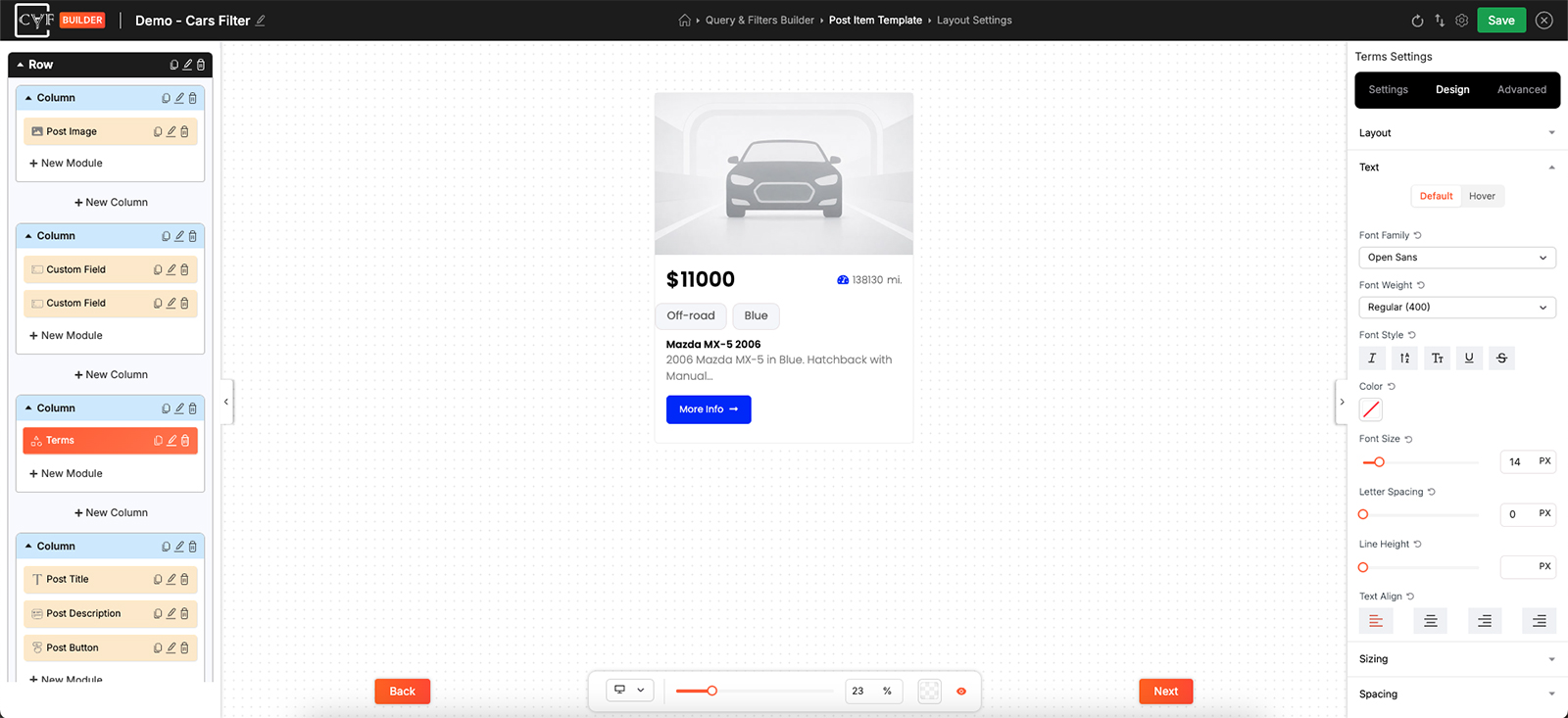
One design, applied to every term.

Tip
Chips look best with short terms. A category called Sneakers sits neatly in a box; one called Men's Running and Training Footwear becomes a box the width of the card. Check the module against your longest term name before committing to the style.
FAQ
Can I show more than one taxonomy?
Not in one module - it reads a single taxonomy. Place the module twice and point each copy at a different one.
Some posts show far more terms than others.
Set a terms limit so every item shows the same number at most.
How do I make the terms look like chips?
Give them a background, padding and a border radius, and set the separator to None.
Can I style one term differently from the rest?
No - one design applies to all of them.
Where does a term link go?
To that term's own page. Open In decides whether it opens in the same window or a new one.
Was this page helpful?
Thanks for your feedback!